In a nutshell: get the essentials of LinkedIn Ads conversion tracking working. Install the Insight Tag, define website visits and meaningful actions, and choose your attribution windows and model. Then use LinkedScope’s conversion breakdown to separate the events and understand how your ad sets participate.
You open a report and see plenty of LinkedIn Ads conversions. Good news?
That depends. Were they website visits, demo requests, or closed deals?
When everything sits inside one number, it’s hard to understand what each campaign is doing. A content ad might help bring someone back to your site. Another ad might appear closer to the demo request. Both deserve a look, but they won’t necessarily receive the same credit.
Here’s the setup I use to make that report useful: the Insight Tag, URL-based and event-specific conversions, values, attribution, and LinkedScope’s conversion breakdown.
What counts as a LinkedIn Ads conversion?
A conversion is an action you’ve chosen to track because it matters to your business. That could be a pricing-page visit, a completed form, or a sale reported from your CRM.
A conversion isn’t automatically a lead. And a lead isn’t automatically a customer.
I organize the signals by how far they take the buyer:
- Website visit: someone reaches a tracked page.
- Key-page visit: they view pricing, a product, a solution, or another page that suggests stronger interest.
- Contact, trial, or demo: they complete an important form.
- Meeting booked: they confirm an appointment.
- Qualified lead: they meet a qualification criterion recorded in the CRM.
- Closed-won deal: the opportunity closes.
One buyer can generate several of these events. Adding them together won’t tell you how many people bought.
If you’re still setting up the account, start with the step-by-step guide to advertising on LinkedIn.
What’s the difference between the Insight Tag and a conversion event?
The Insight Tag is the tracking foundation installed on your website. A conversion rule defines the action you want to measure. You install the base tag once, then configure the relevant events:
- Page load: the URL someone visits matches your rule.
- Event-specific: the website sends a signal when an action happens, even if the page doesn’t change.
LinkedIn also offers Website Actions, which identifies website interactions you can use in your setup. I’ll focus on manual rules here so it’s clear what you’re measuring. See LinkedIn’s conversion tracking methods.
How do you install the LinkedIn Insight Tag?
Get the tag from your ad account and install it directly on the website or through Google Tag Manager. Check for an existing installation first.
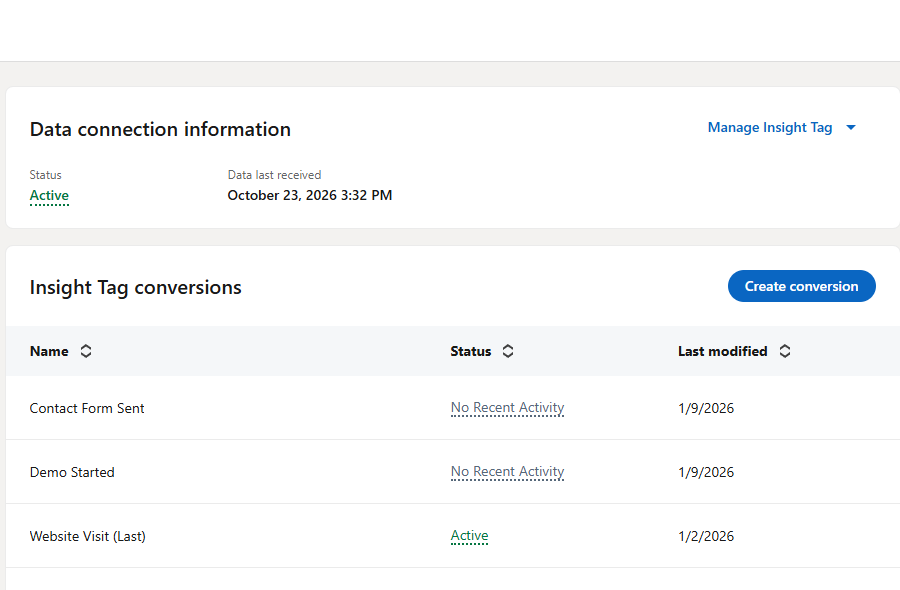
In Campaign Manager, go to Measure → Signals manager → Insight Tag. You’ll find the code and your Partner ID. This identifies the installation; it’s different from an individual conversion ID.
Installing through Google Tag Manager
- Open the container that’s already installed on your website.
- Create a tag using the LinkedIn InsightTag 2.0 template in the gallery.
- Enter the account’s Partner ID.
- Set the trigger for eligible public pages, honoring applicable consent requirements and excluding sensitive pages.
- Check the trigger in GTM Preview, then publish the container version.
LinkedIn’s GTM installation guide covers the template details.
Installing directly on the website
Copy the complete code and have it installed in the global footer, before </body>, on eligible pages. With WordPress, choose one installation method: the theme, a code-insertion plugin, or a developer’s implementation. Avoid installing it through both GTM and the theme.
Don’t install the tag on pages that collect or contain sensitive data. Keep personal information out of tracked URLs and check LinkedIn’s installation restrictions.
How do you validate the installation?
Visit an eligible page under conditions where tracking should be allowed, then check the source status in Signals manager. Confirmation can take up to 24 hours after a visit. GTM Preview and your browser’s Network panel help verify that the tag fires. If it doesn’t, follow the Insight Tag troubleshooting guide.
How do you create a conversion in Campaign Manager?
Go to Measure → Conversion tracking → Create conversion and choose Insight Tag. Enter the name, category, value, click and view windows, and attribution model. Then define the URL or event and review the associated ad sets.
Use names that explain the action and the reporting lens, such as Key Page Visits [Each] or Contact / Trial / Demo Form Submitted [Last]. The suffixes organize your reports; you still need to select the matching model.
The current labels are Last Touch – Each ad set and Last Touch – Last ad set. What LinkedIn previously called a campaign is now an ad set; today’s campaign corresponds to the former campaign group. Below, I’ll shorten the model names to “Each ad set” and “Last ad set.”
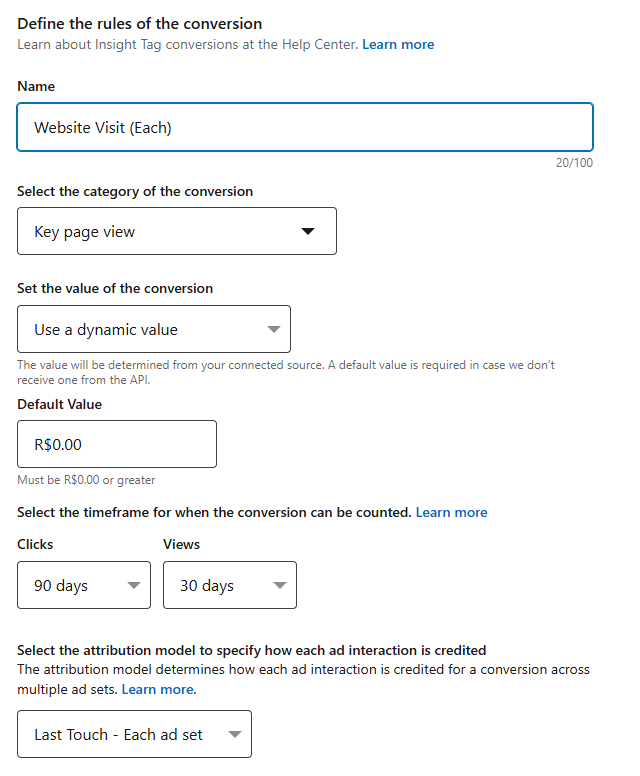
Review the suggested associations and check them whenever you launch a new ad set. The screenshots show existing rules in LinkedScope’s own account; their names and values may differ from the reference setup below.
How do you track website visits and key pages?
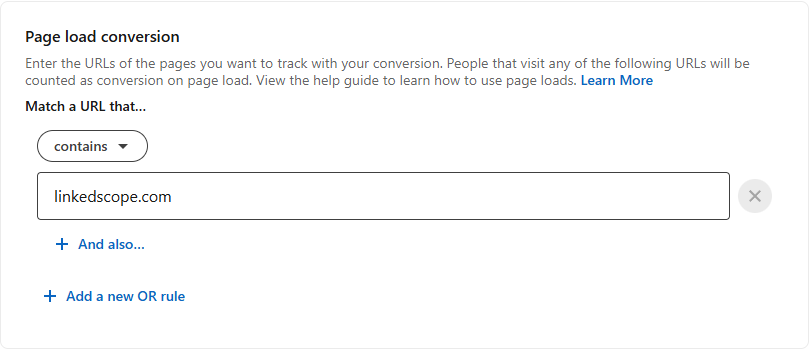
Create page-load conversions with URL rules. For website visits, I recommend URL contains yourcompany.com, without a protocol, www, or trailing slash. This covers variations such as https://www.yourcompany.com/pricing?utm_source=linkedin.
| Conversion | Example rule |
|---|---|
| Website Visits | URL contains yourcompany.com |
| Key Page Visits | URL contains yourcompany.com AND contains /pricing |
| Contact / Trial / Demo Form Submitted | URL contains yourcompany.com AND contains /demo-thank-you |
To include other key pages, add OR alternatives and repeat the domain condition in each one. If you need separate reporting for pricing, product, and solutions pages, create separate conversions.
Contains finds part of the URL; Equals requires an exact match; Starts with requires the beginning you specify. Test the final URL, including language paths and redirects. See LinkedIn’s URL matching guide.
A thank-you page should appear after a successful submission. Visiting a form isn’t the same as submitting it, just as clicking “Book” doesn’t confirm an appointment.
When should you use an event-specific conversion?
Use an event-specific conversion when the completed action doesn’t produce a unique URL. This is common with forms that don’t reload the page and embedded booking tools.
- Create the conversion and choose the event-specific method.
- Get the ID and code generated for that rule.
- Use GTM or your website code to fire the event when success is confirmed.
- Make sure the base Insight Tag is available at that moment.
- Validate the complete flow before publishing the implementation.
For a form, trigger on a submission accepted by the system. A button click can happen with invalid fields or during an error.
If you create [Each] and [Last] versions, each rule has its own ID. The same completed action should feed both rules, once per rule. See the event-specific GTM workflow.
What’s the difference between Each ad set and Last ad set?
Each ad set allows several eligible ad sets to receive credit for the same conversion. Last ad set concentrates the credit on the ad set with the most recent eligible interaction.
Imagine two ad sets, X and Y. X gets last-touch credit for a lead and looks like the better performer. But Y may also receive Each-model credit for an earlier eligible interaction. Comparing the two views helps you see Y’s possible participation in the journey.
The ad sets must be associated with the conversion rule, and the interactions must fall within the windows. Last touch doesn’t necessarily mean last click: eligible views can count too.
This credit is assigned within LinkedIn and can repeat one action across ad sets. It’s a participation signal, not proof of causality or a complete buyer journey. Read the attribution model definitions and my discussion of the limits of measuring influence.
How do click and view attribution windows work?
The window sets how long after an interaction a conversion can still receive credit. The model determines how that credit is assigned across ad sets. They’re separate settings.
- Post-click: covers eligible clicks within the chosen timeframe.
- View-through: covers ad exposure within the chosen timeframe, even without a click.
Someone clicks today and converts 45 days later. That fits a 90-day click window, but not a 30-day one. Someone only sees the ad and converts 10 days later: that fits a 30-day view window, but not a 7-day one.
Website conversions support 1-, 7-, 30-, and 90-day windows. Certain categories sent through the Conversions API or CSV can use 180 or 365 days; those longer windows aren’t available for every Insight Tag conversion. Check LinkedIn’s window eligibility.
In my reference setup, [Each] uses 90 days after a click and 30 after a view. [Last] uses 30 days after a click and 7 after a view.
The first provides a broader participation view; the second emphasizes recent interactions. Because the model and windows both change, you can’t attribute the difference in totals to the model alone. Keep windows and rules identical to isolate that comparison.
Which events, values, and windows should you start with?
I track events throughout the journey and assign higher values as an action gets closer to a business outcome. This is a reference configuration, not a LinkedIn benchmark or a return forecast.
The example amounts below are in US dollars. The real account shown in the screenshots uses Brazilian reais.
| Conversion | Attribution model | Value | Category | Click window | View window |
|---|---|---|---|---|---|
| Website Visits [Each] | Each ad set | $0.00 | View content | 90 days | 30 days |
| Website Visits [Last] | Last ad set | $0.01 | View content | 30 days | 7 days |
| Website Visits [Display] | Last ad set | $0.01 | View content | 7 days | 1 days |
| Key Page Visits [Each] | Each ad set | $0.10 | Key page view | 90 days | 30 days |
| Key Page Visits [Last] | Last ad set | $1.00 | Key page view | 30 days | 7 days |
| Contact / Trial / Demo Form Submitted [Each] | Each ad set | $5.00 | Lead | 90 days | 30 days |
| Contact / Trial / Demo Form Submitted [Last] | Last ad set | $25.00 | Lead | 30 days | 7 days |
| Meeting Booked [Each] | Each ad set | $20.00 | Schedule | 90 days | 30 days |
| Meeting Booked [Last] | Last ad set | $150.00 | Schedule | 30 days | 7 days |
| CRM Stage “Qualified” [Each] | Each ad set | $25.00 | Qualified lead | 90 days | 30 days |
| CRM Stage “Qualified” [Last] | Last ad set | $200.00 | Qualified lead | 30 days | 7 days |
| Closed-Won CRM Deal [Each] | Each ad set | $50.00 | Purchase | 90 days | 30 days |
| Closed-Won CRM Deal [Last] | Last ad set | $1,000.00 | Purchase | 30 days | 7 days |
Key page view is the category used for important pages; the URL rule determines which pages count. Category labels can vary with the interface language.
[Display] is the rule I reserve for high-impression placements where attention may be limited, especially Text Ads in LinkedIn’s desktop right rail. Someone can be browsing the feed without noticing the ad. A recorded impression doesn’t prove they paid attention.
That’s why this example uses 7 days after a click and just 1 day after a view. With a long view-through window, a later website visit could receive credit even if it would have happened without the ad. The shorter window aims to reduce that risk of over-attribution; it’s my conservative reporting choice, not proof that the ad had no influence. Associate the rule with the ad sets in that scenario: the [Display] suffix alone doesn’t filter formats.
You don’t need all 13 rules on day one. Start with website visits, key pages, and one commercial action you can measure reliably.
Does conversion value mean revenue?
In this reference setup, values are weights that help tell the campaign’s story. A total of $30.02 is compatible with a $5 [Each] lead credit, a $25 [Last] lead credit, and $0.02 from two [Last] visits. Zero-value visits don’t change that total.
It’s a clue about the event mix, not revenue or a unique-lead count. Confirm the composition in the breakdown: other combinations can produce the same amount, and one action can appear in both models.
To measure revenue, use actual deal values and a counting approach suitable for that analysis. LinkedIn supports fixed and dynamic values; see its conversion value options.
How do you measure CRM qualification and closed-won deals?
These events need an integration, the Conversions API, or a supported import. The Insight Tag won’t discover a CRM stage change on its own. See the guide to connecting LinkedIn Ads and your CRM.
These are known as offline conversions: they happen off your website (a meeting held, an opportunity opened, a deal closed) and reach LinkedIn from your server or CRM. Send them in real time, or within a day at most, so the campaign can still use them. Reports can take up to 72 hours to show them, according to the Conversions API FAQ.
With opportunities and deals inside LinkedIn, you can calculate each campaign’s cost per opportunity and cost per closed deal, two metrics far more reliable than cost per lead.
Leads and Qualified Leads sent by LinkedScope
Under Settings → Account → Automations, LinkedScope offers two independent options and creates the required conversion rules automatically. There’s no conversion ID to copy and paste:
- Send Lead conversions: sends the event when a new eligible lead is saved, whether from your website or a native form. The rule is LinkedScope – Leads.
- Send Qualified Lead conversions: sends the event when you mark a lead as qualified on the Leads screen. When created in English, the rule is named LinkedScope – Qualified Leads; existing rule names retain their creation language.
For LinkedIn, delivery uses CAPI and the integration’s own settings. You can enable just one option and set a default value for each event. This doesn’t automatically send every CRM stage or closed-won deal.
If another tool sends the same action, review overlap and deduplication before enabling it. Follow the Help Center instructions to send Leads and Qualified Leads conversions to your ad channels.
How do you view conversion events in LinkedScope?
The conversion breakdown separates the metric by the rules registered in LinkedIn. You can distinguish website visits, completed forms, and other attributed events.
- Open the account connected to the correct advertiser.
- Select your reporting period and campaign scope.
- In Dashboard → Performance by Channel, find the LinkedIn block and hover over the eye icon next to Conversions.
- Compare the event rows using the [Each], [Last], and other names you’ve defined.
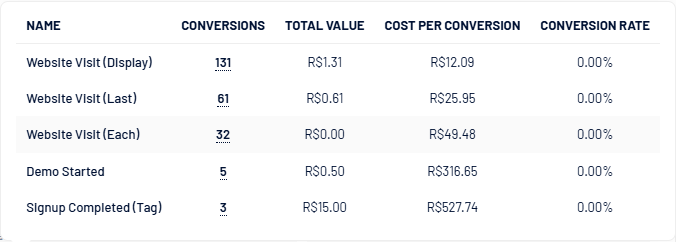
The table shows Name, Conversions, Total Value, Cost per Conversion, and Conversion Rate. Hover over a row’s conversion count to see post-click and post-view conversions. The breakdown is also available in the ad set and ad tables.
Compare equivalent rules. One linked to eight ad sets and another linked to eleven already have different scopes. [Each] alone doesn’t guarantee a higher number than [Last]. Check the source, URL or event, windows, and collection start date too.
LinkedScope displays conversions reported by LinkedIn, using the models and windows configured at the source. The breakdown is aggregated and doesn’t identify individual website visitors.
For a walkthrough, see the Dashboard and Campaigns and Ads help articles.
How should you interpret the breakdown?
- Many visits, few forms: investigate the audience, message, page, and offer.
- An ad set appears more in [Each]: it may be participating earlier. Align the event, period, and windows before drawing conclusions.
- An ad set appears more in [Last]: it receives more credit for recent eligible interactions; earlier ad sets may still play a role.
For example, 80 visits and two demo requests aren’t 82 leads. They’re different actions. That’s why separating the events matters.
Want to see these events alongside campaign performance? Explore LinkedScope and start your free 15-day trial.
Why isn’t a conversion showing in the report?
Check collection, the rule, the association, and attribution, in that order. A missing number doesn’t automatically mean the tag is broken.
- The tag didn’t load: check installation, consent, blockers, and eligible pages.
- The URL doesn’t match: test the final address and your AND/OR conditions.
- The event fires on an attempt: trigger it on confirmed success.
- The ad set isn’t associated: review the conversion rule.
- There’s no eligible interaction: the event may be received without receiving ad credit.
- Reporting is still processing: allow for the source’s processing time.
- The filters differ: align the advertiser, period, and campaign scope before comparing tools.
Use Campaign Manager’s Conversions & Leads view as a reference. LinkedIn explains its conversion metrics and reporting.
Frequently asked questions about LinkedIn Ads conversions
Can a website visit count as a conversion?
Yes. A page-load rule can track visits attributed to ads. That doesn’t make a visit a lead or a sale.
Do I need a separate Insight Tag for every event?
No. The base tag supports the website’s rules. Event-specific conversions use their own IDs and must fire when the relevant action happens.
Which is better: Each ad set or Last ad set?
It depends on your question. Each ad set shows participation across eligible ad sets; Last ad set concentrates credit on the latest eligible interaction. Use the same windows to compare the models alone.
Can I add [Each] and [Last] conversions together?
Not to count people, unique leads, or sales. Both rules can measure the same action, and Each can give credit to several ad sets.
Does the Insight Tag automatically track closed-won CRM deals?
No. CRM changes must be sent through an integration, the Conversions API, or a supported import.
What are offline conversions in LinkedIn Ads?
Actions that happen off your website, such as an opportunity or a closed deal recorded in your CRM, sent to LinkedIn through the Conversions API or an integration so they can be attributed to your campaigns.