
In a nutshell: LinkedIn Ads exclusions remove from your campaigns the people who shouldn’t see your ads: current customers, competitors, partners and companies outside your ICP. They work with OR: match any criterion and the person is out. Excluding with a company list is more predictable than excluding by company size or industry, which depend on each member’s link to their company page. Excluding too much also hurts the campaign, because LinkedIn looks at every current position on the profile. And an outdated list is silent waste: sync it with your CRM and review it often.
Do you know how much of your budget is going to people who are already customers?
Or to your competitor’s entire team, who love seeing what you’re advertising?
If you haven’t set up LinkedIn Ads exclusions, the answer is probably: more than it should.
And the worst part: it doesn’t show up in any report. CPM looks fine, CTR looks fine… and part of the money is going to the wrong place.
In this guide I’ll show you who to exclude (and who not to), which type of exclusion to use, the two mistakes I see the most and how to put it all on autopilot.
What are LinkedIn Ads exclusions?
An exclusion is the part of your targeting that says who can’t see your ad, even if they fit the audience.
LinkedIn first builds the audience with your inclusion criteria. Then it removes everyone who matches the exclusions.
And here’s the most important detail: exclusions work with OR. Did the person match any of the criteria? Out.
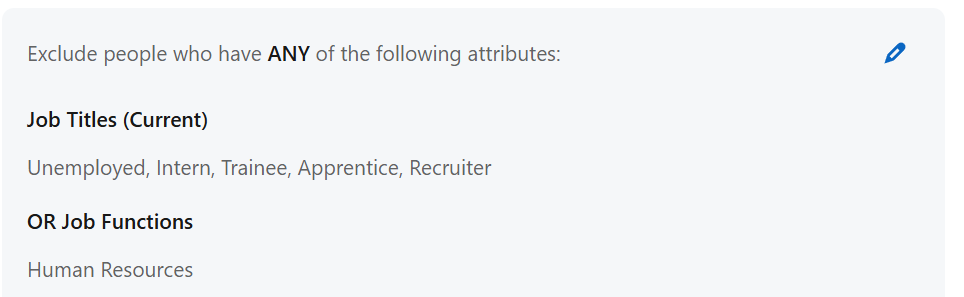
Remember this, we’ll come back to it in a minute.
Types of exclusion on LinkedIn Ads
| Type | How it works | Best use | Precision |
|---|---|---|---|
| Company list | You upload a list and LinkedIn removes people who work at those companies | Customers, competitors, partners, disqualified accounts | High (depends on the member’s link to the company page) |
| Contact list | You upload emails and LinkedIn removes those people | Existing leads, open opportunities or product users | High (depends on the match rate) |
| Job title, function or seniority | Removes people with those attributes on their profile | Interns, students, titles with no buying power | Medium |
| Industry or company size | Removes people who work at companies in that industry or employee range | Keeping out the bulk of a market outside your ICP | Low to medium (it leaks) |
| Retargeting audiences | Removes people who already engaged, like those who submitted a form | Not paying again for people who already converted | High |
Who to exclude from your campaigns (and who not to)
Exclude without thinking twice:
- Competitors. They’re not going to buy. And they get a free course on your strategy.
- Partners and vendors, when the campaign is about acquisition.
- Disqualified companies: the ones sales already ruled out for a clear reason (size, timing, industry, history).
- People who already converted on that offer, in lead gen campaigns.
- Your own company. Yes, your team loves clicking on your own ads. 😅
Now, current customers are a different story.
Exclude customers from acquisition campaigns. It makes no sense to pay to offer them what they already bought.
But keep them in (or create campaigns just for them) when the goal is upsell, cross-sell, account expansion or renewal (the famous ABM on your customer base). Customers who see your brand often buy more and churn less.
The rule: exclusions per campaign, based on its goal. There’s no “universal exclusion list” that works for everything.
Exclude by company size or by company list?
There are two ways to keep off-profile companies out of your campaigns. And they’re not equally precise.
- Attribute exclusion (company size, industry): depends on the data each member keeps on their profile. Anyone who didn’t link their company page, or linked the wrong one, stays unclassified and isn’t removed. It works to keep out the bulk of a range, but it leaks, especially at smaller companies. With industry there’s another leak: a company can have several industries, some of them inferred by LinkedIn. Excluding one industry can remove companies whose primary industry is a different one.
- Company list exclusion: you define exactly which companies are out and check the list’s match rate. It also depends on the member’s link to the company page, but it’s much more predictable. It’s the way to go for customers, competitors and accounts that can’t see your ads under any circumstances.
At the end of the day, that’s the difference: with a list, you know exactly which company is going out. With an attribute, LinkedIn’s classification decides, and it has holes you can’t see.
The best result usually comes from combining them: attribute for the bulk, list for the companies that can’t show up.
And every time you add an exclusion, compare the audience estimate before and after. If the number doesn’t drop as expected, the exclusion isn’t doing what it seems.
I tested this with LinkedIn’s audience estimates (October 2026). The full test is in the post on LinkedIn Ads targeting.
In a US audience of Marketing, manager and above, excluding companies with up to 50 employees left 1.1 million people.
But only 930K of them are provably at companies with 51+ employees.
At least 170K (15%) stay in the campaign with no known company size. In an audience of directors from any function, that share goes past a quarter.
So if company size matters, include the ranges you want instead of excluding the ones you don’t. And for companies that can’t see your ad under any circumstances, use a list.
Careful: too many exclusions also hurt the campaign
Exclusion looks like optimization. But used badly, it removes exactly the people you wanted to reach.
Remember the OR? Yep.
LinkedIn looks at every current position on the profile. If any of them matches an exclusion, the person is out.
- Excluded universities or the education industry to remove students? Out goes the CFO who teaches an evening MBA class, and the executive who’s a guest lecturer.
- Excluded agencies and consultancies? Out goes the CMO who keeps their own consulting firm on their profile.
- Excluded companies with 1 to 10 employees? Out goes the executive at a large company who’s also a partner in a small business, a family holding company or a side project.
And the more senior the audience, the more likely someone has more than one current position: board seats, partnerships, teaching, mentoring.
In other words: broad exclusions cut hardest at the top of your ICP.
How to exclude without sabotaging yourself
- Prefer excluding specific companies (list) over excluding entire industries or company size ranges.
- Apply exclusions to a saved audience first and check Audience Insights. If job titles or industries you wanted to keep shrink too much, the exclusion is cutting the right people. Only then use the audience in the campaign.
- Compare the audience estimate before and after each exclusion. Dropped way more than expected? Good people are leaving too.
- Review your exclusions when delivery drops for no apparent reason.
- Look at the job titles and companies you reached before excluding. Excluding on reflex, without data, is riskier than keeping them in.
That last point is the one that makes the biggest difference. At the end of the day, what counts isn’t what you set up, but who the campaign actually reached.
Campaign Manager shows part of this in professional demographics, but the job title view stops at the top 25, with impressions, clicks and CTR. In LinkedScope’s Reached Job Titles you see every job title LinkedIn reports, with ad spend, conversions and leads, and you mark the ones that don’t fit as negative with one click: the title goes into the exclusions of the campaigns you choose.
This multiple-positions thing also messes with inclusion: the targeting “AND” doesn’t tie job title and company together. I explain it in detail in the post on LinkedIn Ads targeting.
Outdated exclusion lists: the silent waste
This is the mistake I see the most. And the sneakiest.
Someone uploads the customer list the day they create the campaign. Lovely.
Three months later, 15 new customers came in, two competitors popped up in the market and sales disqualified about 40 accounts.
None of that made it to LinkedIn.
An exclusion list is like milk: it has an expiration date. To keep it from going sour:
- Use your CRM as the source, not a spreadsheet forgotten in Drive. If you haven’t connected it yet, check out the LinkedIn Ads CRM integration.
- Update it often, ideally every week.
- Account for processing time: LinkedIn can take up to 48 hours to process a list.
- Check that the list is applied as an exclusion on every campaign that needs it. A synced list that isn’t applied excludes nobody.
How to build your exclusion list step by step
- Gather the sources: active customers and open deals (from the CRM), competitors, partners and accounts disqualified by sales.
- Tag the reason for each company (customer, competitor, partner, disqualified). It helps you decide which campaigns each group is removed from.
- Use the company’s LinkedIn page URL whenever you can. It’s the identifier with the least room for matching errors.
- Upload the list to Campaign Manager and wait for processing.
- Apply it as an exclusion to the right campaigns, based on each one’s goal.
- Compare the audience estimate before and after.
- Repeat every week (or automate it, which is the next topic).
How to put exclusions on autopilot with LinkedScope
Doing all this by hand every week? Nobody deserves that.
In LinkedScope, the Exclusion list handles the boring part:
- You add companies by page URL, import a spreadsheet or send them straight from Reached Companies, Spark Prospects or Target Accounts.
- Each company gets a tag with the reason: Client, Competitor, Partner, Disqualified or Other.
- The list syncs with LinkedIn Ads, including automatically every week.
- An automation applies the Exclusion audience to every active campaign on each sync.
And there’s a cousin of this feature worth knowing: the impression cap per company. Exclusion is permanent and you’re in control. The cap temporarily removes the companies that are eating up your impressions and brings them back later.
Want to stop paying to reach customers and competitors? See how LinkedScope works and try it free for 15 days. 😉
FAQ
How do you exclude companies on LinkedIn Ads?
Upload a company list to Campaign Manager, wait for processing and apply the list as an exclusion on your campaigns. You can also exclude by company name, industry or company size directly in the targeting, but the list is more predictable.
Should I exclude customers from LinkedIn Ads campaigns?
From acquisition campaigns, yes. From upsell, cross-sell, expansion or renewal campaigns, no: in those, the customer is the audience.
Why doesn’t company size exclusion work properly?
Because company size comes from the company page linked on each member’s profile. Anyone who didn’t link the page, or linked the wrong one, has no company size and isn’t removed. For specific companies, use a list.
Can too many exclusions hurt the campaign?
Yes. Exclusions work with OR and LinkedIn considers every current position on the profile. Excluding entire industries or company size ranges can remove executives in your ICP who also teach, run their own consultancy or are partners in small companies.
How often should I update my exclusion list?
Ideally every week, using your CRM as the source, and keeping in mind that LinkedIn can take up to 48 hours to process the list.