In a nutshell: LinkedIn is the only major ad network that shows which companies your campaigns reached, because it knows where each member works. In Campaign Manager, you’ll find this on the Companies screen (with engagement level and paid and organic metrics, but no spend per company) and in professional demographics, with approximate numbers and privacy limits. In LinkedScope, Reached Companies lists the companies LinkedIn reports, with each one’s spend, impressions, engagements, clicks, conversions and leads, the Intent Index, CRM data and one-click actions to Target Accounts or Exclusion. And Reached Job Titles does the same for the job titles you reached. The data is always by company and job title, never by person.
“Who saw my ad?”
On Instagram, the answer is: who knows. People who like a topic.
On Google: people who searched for a keyword.
On LinkedIn, the answer is different. You can find out which companies saw it.
And if you sell B2B, that changes the game. Because you don’t sell to “people interested in technology”. You sell to companies. Ideally, the ones on your list.
In this guide to the companies your LinkedIn Ads reached, I’ll show you where to find this data, what LinkedIn itself gives you, where it falls short and how to turn it into action. Let’s go?
Can you see which companies saw your LinkedIn ads?
Yes. LinkedIn is the only major ad network that reports campaign results by company.
The reason is simple: on LinkedIn, every member says where they work. So when your ad shows up for someone, LinkedIn knows which company that person is from, and can add up impressions, clicks and other metrics by company.
Meta and Google don’t have that data. There you get age, interests, keywords. Company, no.
But here’s an important detail: LinkedIn shows companies, not people. You know company X got 2,000 impressions and 15 clicks. You don’t know who, inside it, clicked. And that’s privacy working, not a flaw.
How do you see the companies reached in Campaign Manager?
Today, Campaign Manager shows this in two places.
1. The Companies screen
It’s under Plan > Companies. It’s the most complete view LinkedIn has ever given on this.
What it shows:
- Engagement level for each company, from very low to very high.
- Paid metrics (impressions, clicks, engagements, video views, conversions, leads and qualified leads) and organic ones (impressions and engagements with your Page).
- Ready-made segments, like “Highly engaged”, “High reach, no response” and “Declining accounts”.
- Company size, industry, country and the company lists each one is on.
- 30, 90, 180 or 365-day windows, campaign filters and the option to create an audience or export.
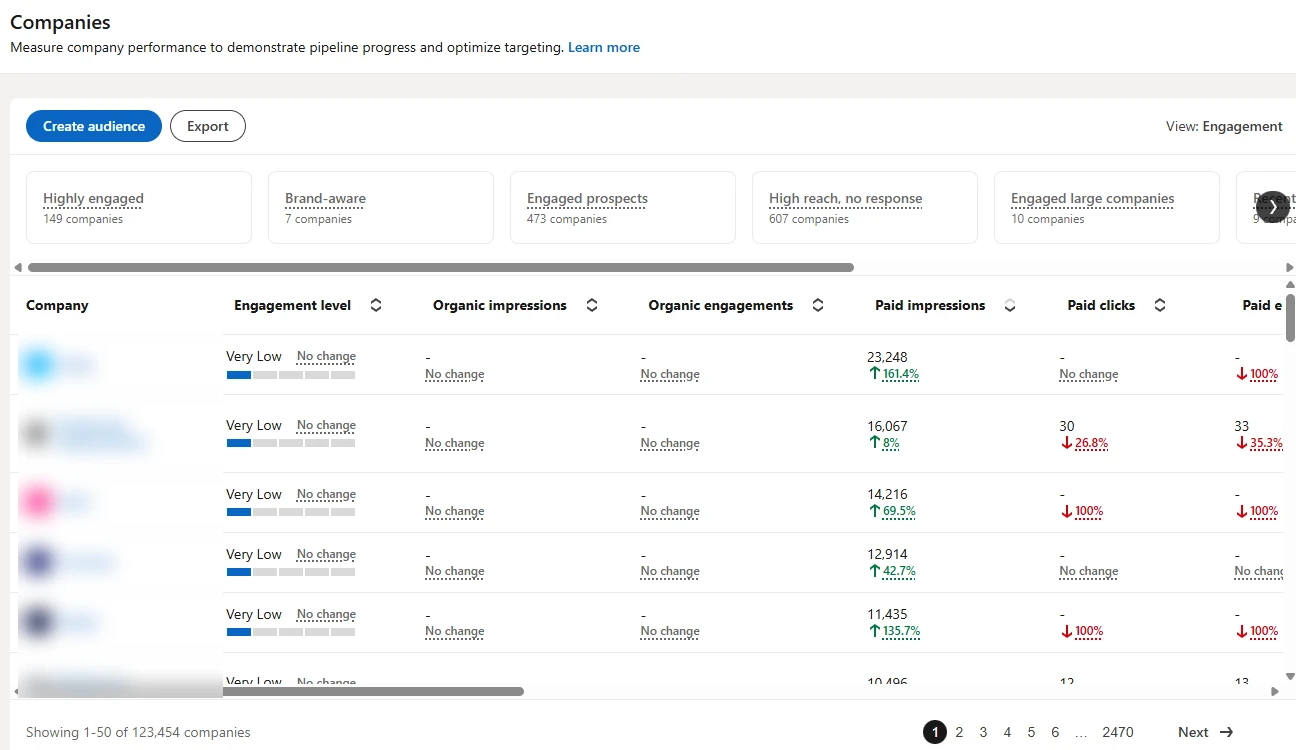
On our account, over 90 days, that’s 123,454 companies. Yep. So the question stops being “who saw it” and becomes “what do I do with this”.
What’s missing there: there’s no spend per company, and leads are only LinkedIn’s. Whoever converted on your site or came from Google doesn’t show up.
2. Professional demographics by company
In the Professional demographics report (on the campaign list), you can also see results by company. And here the privacy limits LinkedIn applies to any demographic data kick in:
- The numbers are approximate. To protect member privacy, LinkedIn rounds demographic metrics. That’s why the sum of the companies doesn’t exactly match the campaign total.
- Companies with little activity disappear. Values with fewer than 3 events aren’t reported.
- It arrives late. Demographic data can take 12 to 24 hours to show up.
Why do companies I didn’t target show up?
A classic. You upload a list of 200 companies and the report shows others.
LinkedIn explains why:
- The person works at more than one company (the famous dual position).
- The person changed jobs during the campaign.
- Audience Expansion was on.
- The targeted companies are parent companies of others.
- You changed the company list in the middle of the campaign.
More on this behavior in the LinkedIn Ads targeting guide.
Why isn’t knowing the company name enough?
Because a company name, on its own, doesn’t tell you what to do.
Think about it. You find out company X had 3,000 impressions this month and a “medium” engagement level. So what?
- Is it in your ICP, or a company that will never buy from you?
- How much of your budget went to it?
- Did it just see the ad, or did it engage, click, convert?
- Did anyone there become a lead? Through which channel?
- Is there already an open deal with them in your CRM? At what stage?
- Is it on your target account list?
That cross-check is what turns a report into a decision: pull it from the campaign, pass it to sales, try again with a different message.
How do you see the companies reached in LinkedScope?
In LinkedScope, the Reached Companies screen lists the companies LinkedIn reports for your campaigns, with metrics for each one:
- Spend, impressions, engagements, clicks, CTR and conversions for the company in the period.
- The company’s leads from every channel (website, LinkedIn, Google and Meta), not just LinkedIn.
- Data from your connected CRM: whether it’s a customer, deal stage, owner and value.
- The Target Accounts list the company is on.
- The Intent Index, a 0 to 100 score that sums up the company’s interest (more on that below).
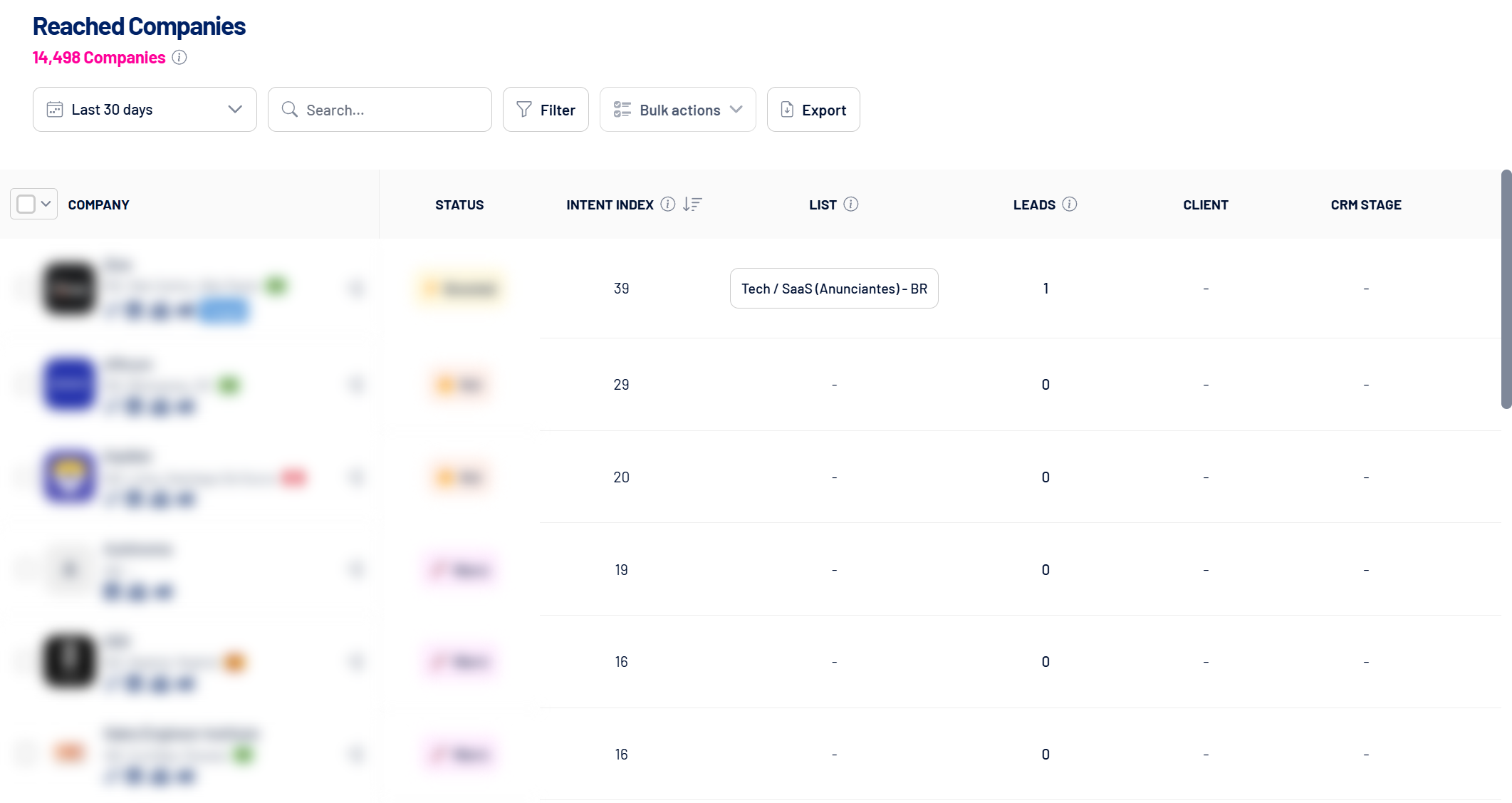
The windows are 7, 30, 60, 90 or 180 days, because that’s how LinkedIn’s company report works behind the scenes.
Click a name and the Company Timeline opens: estimated spend, impressions, engagements, clicks, leads and deals over the last 24 months. You can see how exposure evolved up to each deal opening or closing.
And LinkedIn’s privacy limits apply here too, as in any tool: companies with very little activity aren’t reported, and the numbers are approximate. The difference is how much of it you get to see and what you can do with what it gives you.
What is the Intent Index?
It’s a 0 to 100 score that gives increasing weight to stronger signals of interest:
| Signal | Weight |
|---|---|
| Impressions | Low (on their own, they don’t raise the score) |
| Engagement rate and dwell time on your ads | Medium |
| Clicks to your site and conversions | High |
| Leads from the company | The highest |
That gives you the status: Boosted (30 or more), Hot (20 to 29), Warm (10 to 19) and Cold (below 10).
Notice one thing: a company with tons of impressions and zero interaction stays Cold. Seeing isn’t being interested. The full calculation is in Intent Index: how it’s calculated.
What should you do with the companies you reached?
1. Check that your budget is reaching your ICP
Sort by spend and look at the top 20. Are these companies you want to serve?
If half of them have nothing to do with your ICP, the problem is your targeting, not your creative.
On a tight budget, this matters even more. See how to set up your campaigns in LinkedIn Ads on a small budget.
2. Remove who won’t buy
Competitors, suppliers, current customers, companies outside your profile. With the paper plane icon, you send the company straight to the Exclusion list, which becomes an exclusion audience in LinkedIn Ads. You can do it in bulk.
There’s a whole post on this: LinkedIn Ads exclusions.
3. Pass hot accounts to sales
A Boosted or Hot company with no open deal in your CRM? That’s a conversation for today.
To get this list every week without digging, there’s Spark Prospects, which brings you the companies that match the signals you defined.
4. Put the best ones on your target account list
A company that engages and fits your ICP goes to Target Accounts. The list syncs automatically as an audience in LinkedIn Ads.
That’s the gateway to an ABM strategy. More on that in the guide to LinkedIn Ads for ABM.
5. Don’t let a few companies eat your budget
Sometimes two or three big companies take a big share of the impressions. You can exclude the company or turn on the impression cap per company, which does it automatically.
What about the job titles you reached?
Same logic, looking at the job title.
In Campaign Manager, professional demographics by job title only show the 25 job titles with the most impressions, with impressions, clicks and average CTR.

In LinkedScope’s Reached Job Titles you see all the job titles LinkedIn reports, with spend, impressions, engagements, dwell time, clicks, conversions and leads for each one.
On our own account, in the same period, Campaign Manager listed 25 job titles. LinkedScope showed 1,865.
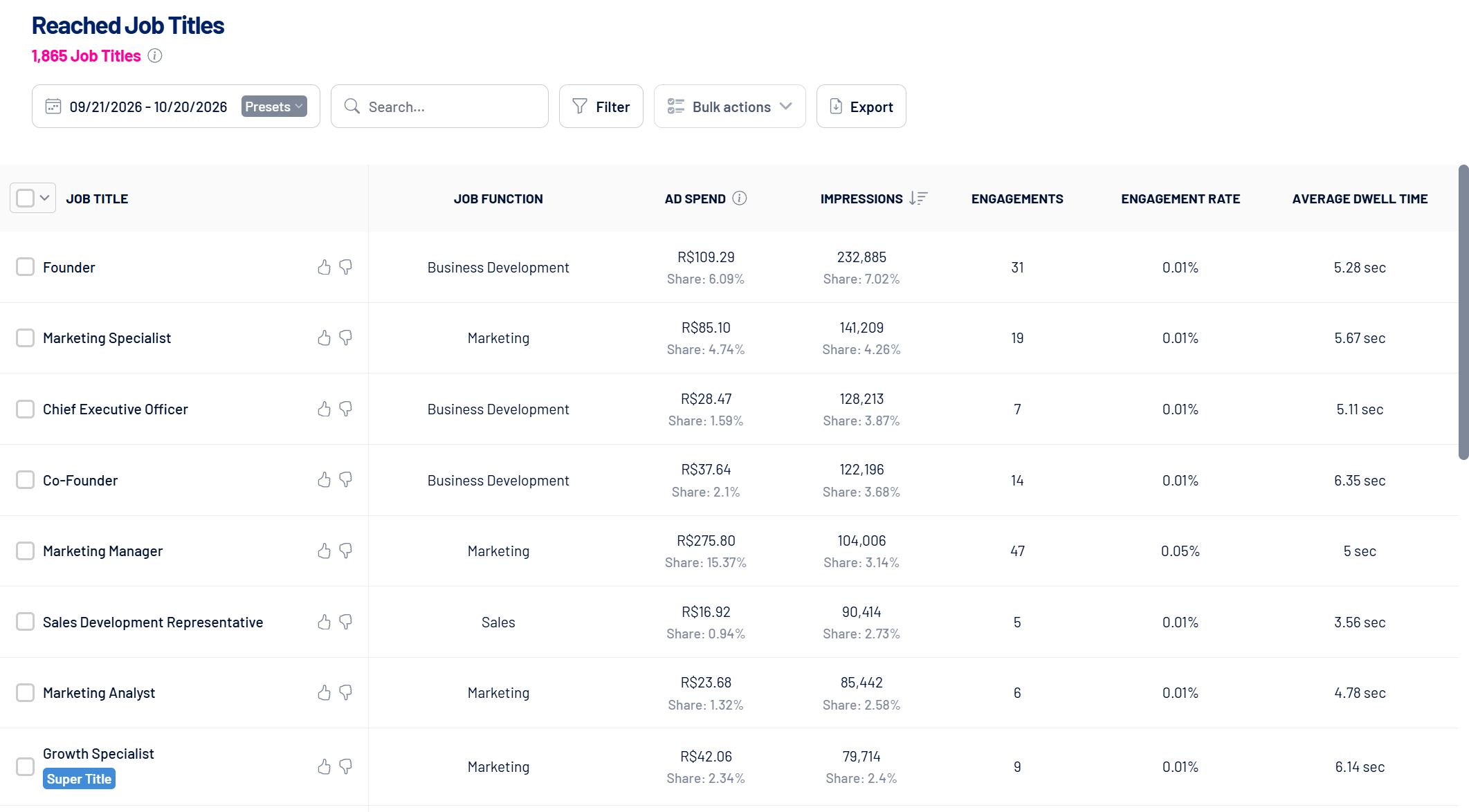
And you can act right there: thumbs up adds the title to your targeting, thumbs down sends it to your exclusions, in the campaigns you choose.
The details of this comparison are in the LinkedIn Ads targeting guide.
Can you see which people saw your LinkedIn ad?
No. And no serious tool should promise that.
LinkedIn reports by company, job title, industry, company size, seniority and location. Never the name of who saw it.
The people you know by name are the ones who left their details (in a Lead Gen Form or on your site) or who interacted publicly with your content.
In practice, the path is: the company shows up in Reached Companies → you see whether it’s warming up → sales reaches out to the right people inside it.
Want to see which companies and job titles your campaigns are really reaching? See how LinkedScope works and try it free for 15 days. 😉
Frequently asked questions
Can I see which companies saw my LinkedIn ads?
Yes. LinkedIn is the only major ad network that reports results by company, because it knows where each member works. In Campaign Manager, you’ll find this on the Companies screen (under Plan) and in professional demographics, by company.
Why do companies I didn’t target show up?
Because the person may work at more than one company, may have changed jobs during the campaign, Audience Expansion may be on, the targeted companies may be parent companies of others, or the list may have changed mid-campaign.
Are LinkedIn’s numbers by company exact?
No. To protect member privacy, demographic metrics are approximate, values with fewer than 3 events aren’t reported and the data can be delayed by 12 to 24 hours.
Can I see who, inside a company, saw my ad?
No. LinkedIn reports companies and professional attributes, never people’s names. You know by name the people who left their details in a form or on your site.
Where can I see all the job titles my campaigns reached?
In Campaign Manager, professional demographics by job title show the 25 titles with the most impressions. In LinkedScope’s Reached Job Titles, you see all the job titles LinkedIn reports, with spend, engagement, conversions and leads for each one.