
Target Accounts is the company list for your ABM strategy. You organize companies into lists, track each one’s leads, contacts and CRM data, and sync everything as a LinkedIn Ads audience so you only advertise to the accounts that matter.
- Where: Target Accounts menu
- Plan: Enterprise or higher
- Import limit: 2,000 companies per file
How to add companies
Hover over Add company and pick one of the options:
- Add manually: paste the company’s LinkedIn page link (for example, linkedin.com/company/company-name). Company details are fetched automatically.
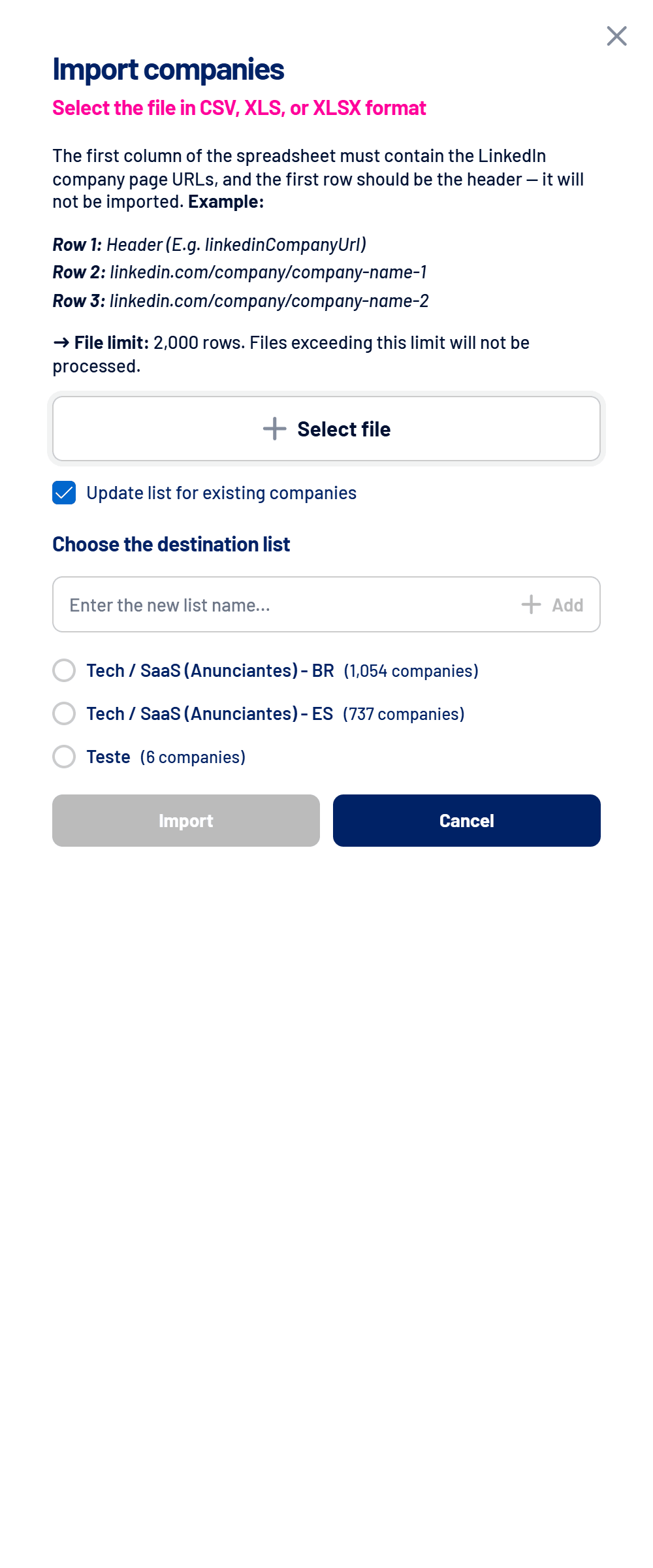
- Import companies: upload a CSV, XLS or XLSX spreadsheet.
- From other screens: in Reached Companies, Spark Prospects or Exclusion, use the paper-plane icon or Bulk actions.
- Build the spreadsheet
The first row is the header (it isn’t imported). In the first column, one LinkedIn company page URL per row. Up to 2,000 rows. - Choose the destination list
Select an existing list or type a new name and press Enter. - Decide about existing companies
With Update list for existing companies checked, companies already in Target Accounts move to the chosen list. Unchecked, they stay where they are. - Import and follow along
The import runs in the background. You get a notification with the summary when it finishes, even if you leave the screen.
Lists
In Manage lists, create, rename and delete lists. Each list can have up to 6 keywords (such as departments or job titles) that the people icon uses to find the right employees on LinkedIn. At least one list must always exist.
What the screen shows
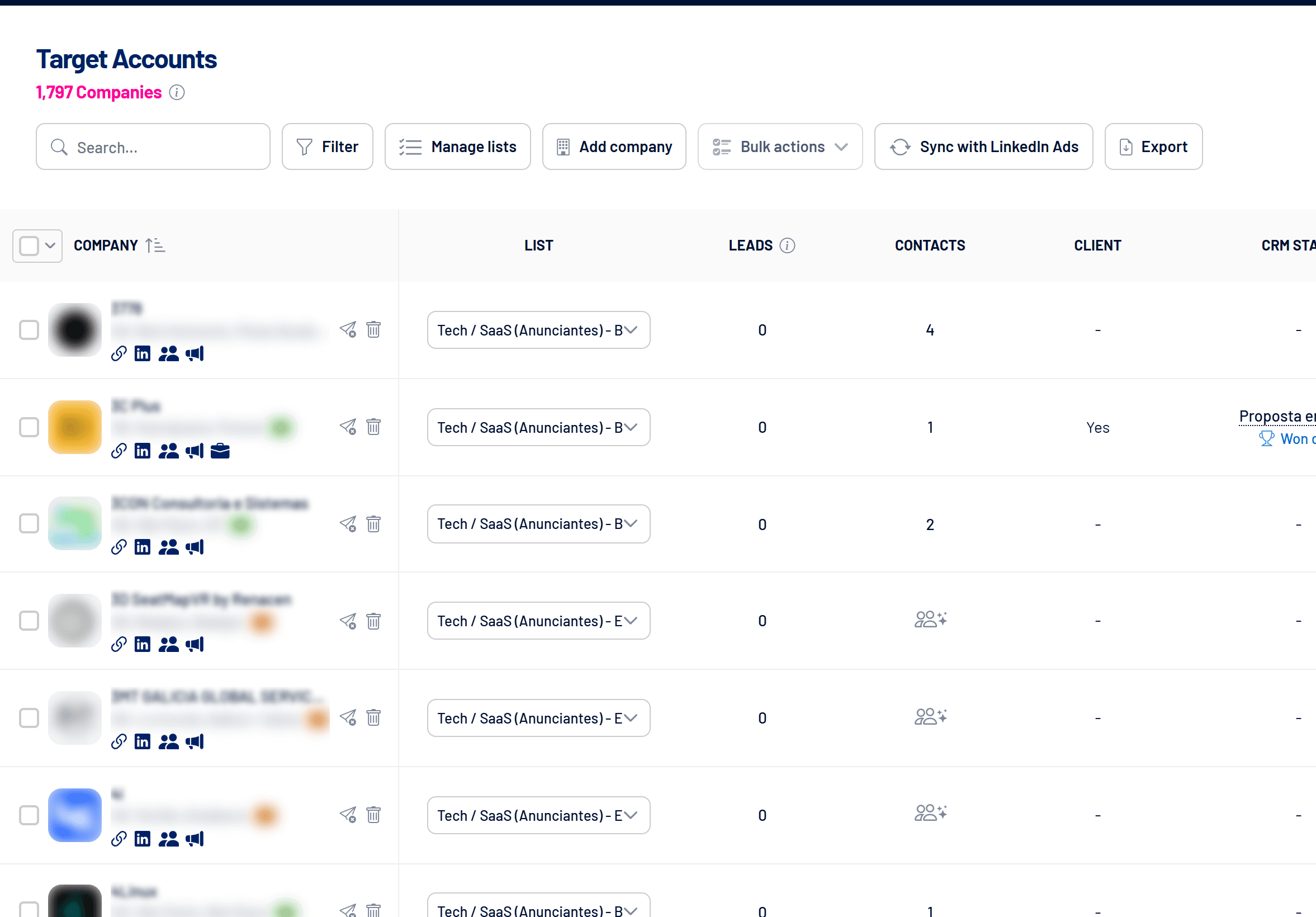
| Column | What it means |
|---|---|
| List | The company’s list. You can change it right on the row. |
| Leads | Every lead associated with the company, from any channel. |
| Contacts | People registered at the company. The add icon finds and enriches contacts. See Contacts: key people at your accounts. |
| Client, CRM stage, Owner, Deal value | Data from the connected CRM. |
How to sync with LinkedIn Ads
- Click Sync with LinkedIn Ads
The companies become a company audience in your ad account. - Wait for processing
LinkedIn can take up to 48 hours to process the list. Sync carefully if the audience is already in use in campaigns. - Use the audience in campaigns
In Campaign Manager, the audience shows the source External: Partner API.
To stop depending on clicks, turn on the automatic weekly sync. See How to sync audiences automatically (Target Accounts, Exclusion and Contacts). You can also use Export for LinkedIn and upload the file manually in Campaign Manager.
Bulk actions
Select companies to move them to another list, send them to Exclusion or remove them. Removing is permanent.
Frequently asked questions
The import skipped some rows.
Check that the first column holds company page URLs (linkedin.com/company/…) and not personal profiles. The import summary lists the problems.
The audience is small on LinkedIn.
LinkedIn only uses the companies it can identify. Prefer the companies’ official page URLs.
How do I exclude customers and competitors from my ads?
Use the Exclusion list. See How to exclude companies from your campaigns.