
Bring into LinkedScope, with no spreadsheet, the people at the companies that have deals in your CRM. You choose which deals count, and LinkedScope imports every contact at those companies and keeps everything up to date.
- Where: Contacts, Auto-import from CRM button
- Who can set it up: Owner and Admin
- CRMs: HubSpot, Salesforce, Pipedrive, RD Station CRM and Clientify
- Updates: optional, after each automatic CRM sync (Monday to Friday, 03:00 UTC)
Before you start
- A native CRM connected in Settings > Integrations. Any CRM connections don’t have this option. See CRM integrations: how they work in LinkedScope.
- A plan with Contacts (Enterprise or higher).
- A CRM user who can see every deal and contact: the import only brings what that user sees.
How to set it up
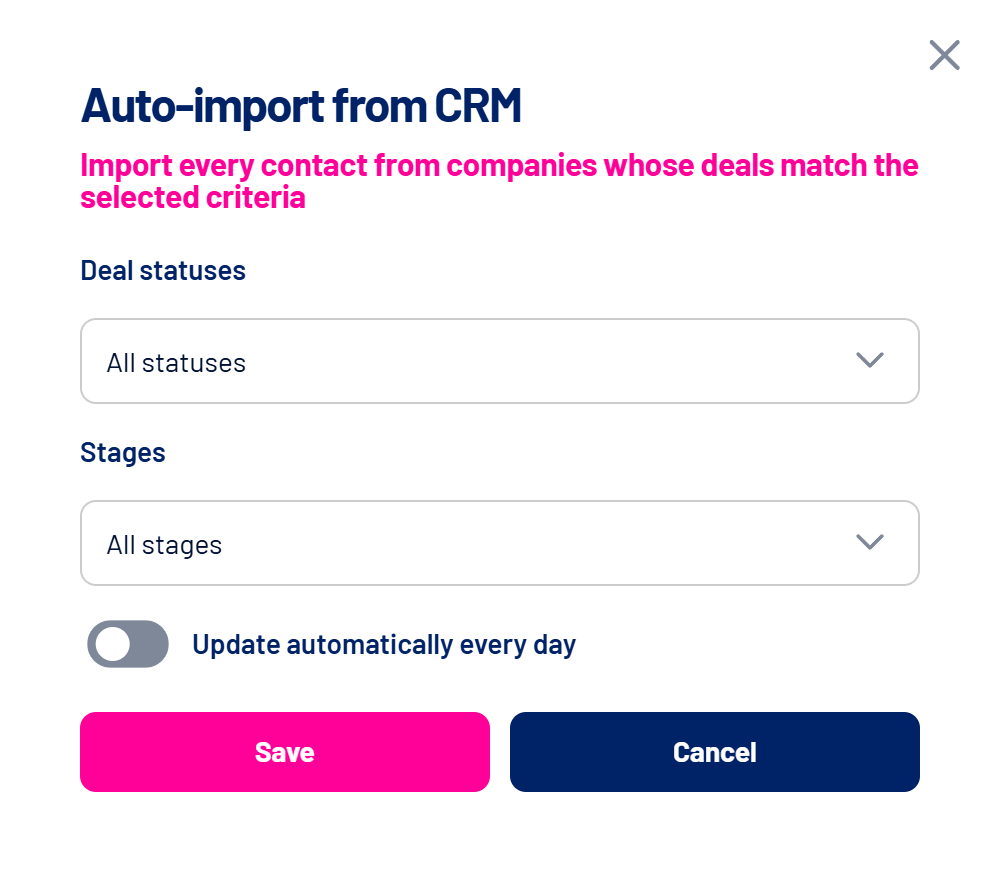
- Open Contacts and click Auto-import from CRM
The button sits next to Add contact. When the list is empty, it also appears in the middle of the screen. - Choose the deal statuses
Open, Won and Lost. With no selection, All statuses applies. - Choose the stages
Stages are grouped by pipeline. Checking every stage of a pipeline selects the whole pipeline, including stages created later. With no selection, All stages applies. - Decide on daily updates
Update automatically every day starts off. Turn it on so the import runs again after each automatic CRM sync. The change only applies after you click Save. - Click Save
The import starts right away. The button shows Importing… until it finishes, and then you get an on-screen message and a notification.
How the criteria combine
A deal counts when it has one of the chosen statuses and sits in one of the chosen stages (or pipelines). Deals with no associated company in the CRM bring no contacts.
What gets imported
- Every contact at each company with at least one deal that meets the criteria.
- Name, job title, email, phone and LinkedIn profile, when the CRM has them.
- The CRM company is stored on the contact. If it matches a Target Accounts company (by domain, name or LinkedIn), the contact is linked to it.
- Contacts that already exist in LinkedScope with the same email are updated, without erasing fields the CRM doesn’t have.
Deal-status audiences
The selection above only decides who gets imported. With a CRM connected, the Contacts sync keeps the same people audiences on LinkedIn, Google and Meta, with or without an import:
| Audience | Who is in it |
|---|---|
| All | Every contact in the account. |
| One per Target Accounts list | Contacts at the companies on that list. |
| Negócios Abertos, Negócios Ganhos and Negócios Perdidos | Contacts whose company has an open, won or lost deal in the CRM, including those added by hand or from a spreadsheet. The names are created in Portuguese. |
Audiences follow the current deals: when a deal closes, the contact moves to the right audience at the next sync, even without a new import. There are no pipeline or stage audiences; those created before this format stay on the networks but are no longer updated, and the same goes for the old Target audience. In Campaign Manager you can combine these audiences, for example a Target Accounts list with Negócios Abertos. See How to sync contacts as audiences on LinkedIn, Google and Meta and How to sync audiences automatically (Target Accounts, Exclusion and Contacts).
When a deal changes
- Contacts are never deleted when a deal closes or stops meeting the criteria. They only move between audiences.
- Contacts that came from the CRM keep receiving CRM updates, even if their company no longer has a deal within the criteria.
- A contact removed in LinkedScope comes back at the next import if its company still meets the criteria.
Frequently asked questions
Can I import just once?
Yes. Leave Update automatically every day off and click Save: the import runs once. To run it again, open the window and save again.
I don’t see the Auto-import from CRM button.
It only shows for Owner and Admin, with HubSpot, Salesforce, Pipedrive, RD Station CRM or Clientify connected and the CRM pipelines loaded.
The Auto-import from CRM button is disabled.
The CRM connection isn’t allowed to read contacts, which happens with older HubSpot connections. Reconnect the CRM in Settings > Integrations, approving every permission, and try again.
The import failed.
You see a message that the CRM contact import could not be completed. Check the connection and permissions in Settings > Integrations and save again. In very large CRMs, the import is retried automatically instead of finishing halfway.
Does the import run while a payment is overdue?
No. It stays blocked until the payment is settled. See Account with a pending payment: what happens and how to fix it.
Can I also import contacts from a spreadsheet?
Yes, both ways work side by side. See How to import contacts from a spreadsheet.