
LinkedScope connects your ad accounts (LinkedIn Ads, Google Ads and Meta Ads) to your CRM and your website to show which companies your campaigns reach, who shows interest, which leads convert and how much of it turns into pipeline. This article walks through the platform’s modules and the recommended setup order.
- Built for: B2B marketing teams and agencies advertising on LinkedIn
- Setup time: about 20 minutes for the basics
- You’ll need: admin access to your ad accounts and, to measure revenue, to your CRM
What LinkedScope does
The platform is organized around four jobs:
- Measure performance: Dashboard, Campaigns and Insights AI bring ad network numbers into one place.
- Know your accounts: Reached Companies, Reached Job Titles, Spark Prospects and Engagers show who you are reaching and who shows intent.
- Act on accounts: Target Accounts, Contacts and Exclusion become audiences synced with the ad networks, and leads and contacts can be sent to outreach tools.
- Prove revenue: Leads and Pipeline Impact tie campaigns to CRM deals, and the Executive Report sums it all up for leadership.
The menu modules
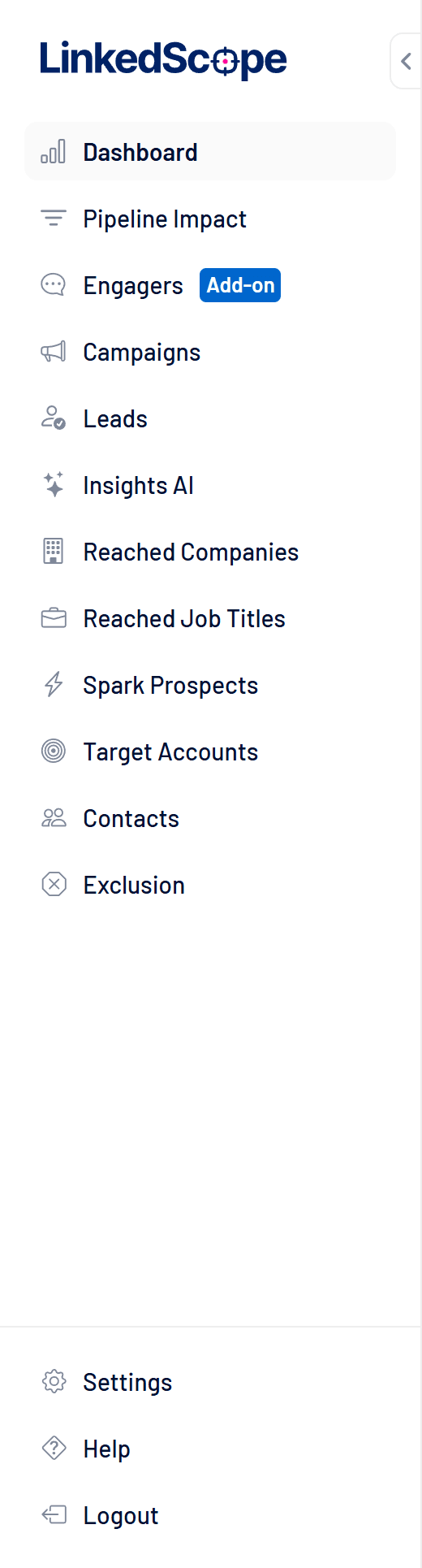
| Module | What it is for |
|---|---|
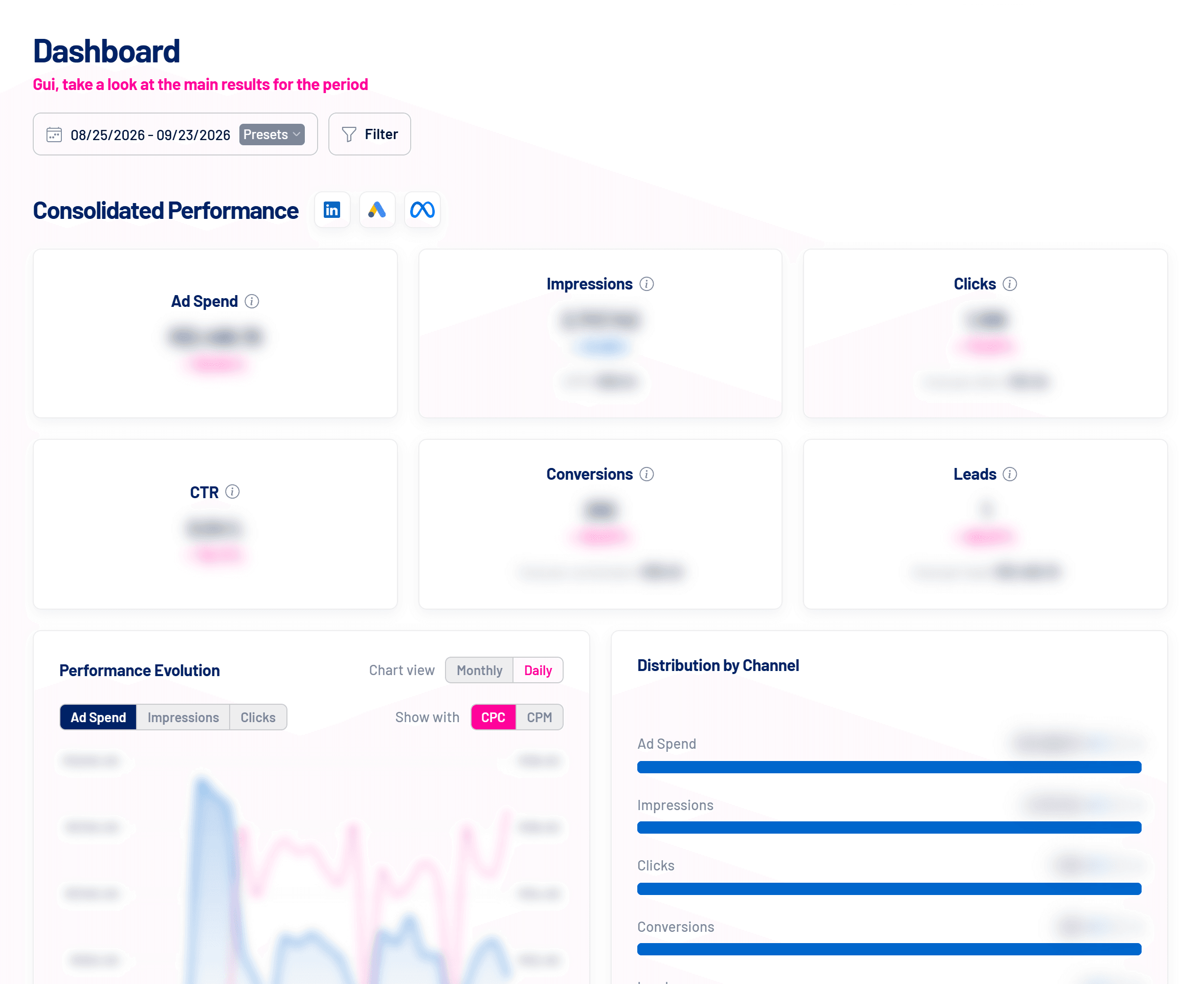
| Dashboard | Consolidated view of spend, impressions, clicks, conversions and leads from LinkedIn, Google and Meta. |
| Pipeline Impact | CRM deals influenced by your campaigns and the value they represent. |
| Engagers (add-on) | People and companies that react to and comment on your LinkedIn content. |
| Campaigns | Detailed campaign and ad performance, with actions such as pausing and activating. |
| Leads | Leads converted on your website and on the networks’ native forms, with the source of each one. |
| Insights AI | AI-generated analysis of campaigns and ads, with suggestions on what to optimize. |
| Reached Companies | Companies reached by your campaigns, with impressions, engagement and Intent Index. |
| Reached Job Titles | Job titles actually reached, to validate and adjust targeting. |
| Spark Prospects | Companies with the highest intent, identified automatically every Sunday. |
| Target Accounts | Your ABM company list, synced as an audience. |
| Contacts | Key people in the buying committee, synced as audiences on the networks. |
| Exclusion | Companies that should not see your ads, such as customers and competitors. |
Recommended setup order
- Create your account
Sign up with your email or with Google and activate the account through the link you receive. See How to create your account, sign in and reset your password. - Connect LinkedIn Ads
This is the main connection: without it, the company, job title and audience modules get no data. See How to connect LinkedIn Ads to LinkedScope. - Connect Google Ads and Meta Ads (optional)
With all three networks connected, the Dashboard shows consolidated performance. See Ad integrations: LinkedIn, Google and Meta. - Connect your CRM
Required for Pipeline Impact. See CRM integrations: how they work in LinkedScope. - Install the lead script on your website
Your website forms then start creating leads in LinkedScope. See How to install the lead capture script on your website. - Turn on automations
Audience sync, conversion sending, budget limit and other routines live in Settings > Account. See Account automations: what each one does. - Invite your team
Add colleagues and set each person’s access level. See How to invite users, set access levels and switch accounts.
Where each setting lives
Everything you configure lives in Settings, at the bottom of the side menu, split into tabs:
| Tab | What you adjust |
|---|---|
| Profile | Your name, position, language, password and the main account shown when you sign in. |
| Account | Company name and website, automations, lead capture script and authorized domains. |
| Integrations | Connections to LinkedIn Ads, Google Ads, Meta Ads, CRM, outreach and enrichment tools. |
| Budget | Monthly spend limit, spend status and the last 12 months of history. |
| Webhooks | Automatic delivery of LinkedScope data to other tools. |
| Reports | Scheduling of the Executive Report by email. |
| Users | Invitations, access levels and user removal. |
| Subscription | Plan, billing cycle, next charge and invoices. |
Some tabs only appear for people with permission: see the access levels in How to invite users, set access levels and switch accounts.
Need help?
The Help item in the menu opens the LinkedScope team’s contact form, prefilled with your details. You can also go to linkedscope.com/contact.
Frequently asked questions
Do I need to advertise on LinkedIn to use LinkedScope?
The Dashboard works with any combination of LinkedIn Ads, Google Ads and Meta Ads. But the account modules (Reached Companies, Reached Job Titles, Spark Prospects, Target Accounts, Exclusion) and most automations depend on a connected LinkedIn Ads account.
Can I connect more than one ad account from the same network?
Not in the same LinkedScope account: it is one account per category at a time. To follow another ad account, create a new LinkedScope account and switch between them from the profile menu.
Is the data updated in real time?
Performance numbers are read from the networks when you open each screen. Some routines run at fixed times: Spark Prospects is refreshed every Sunday and automatic audience sync runs on Saturdays at 04:00 UTC.
Where do I see my plan and what it includes?
In Settings > Subscription. See also Plans, trial and subscription.