
Connecting your CRM is what lets LinkedScope show how much pipeline and revenue came from companies reached by LinkedIn Ads. This guide explains what happens after connecting, how deals are linked to companies and how to tune the analysis.
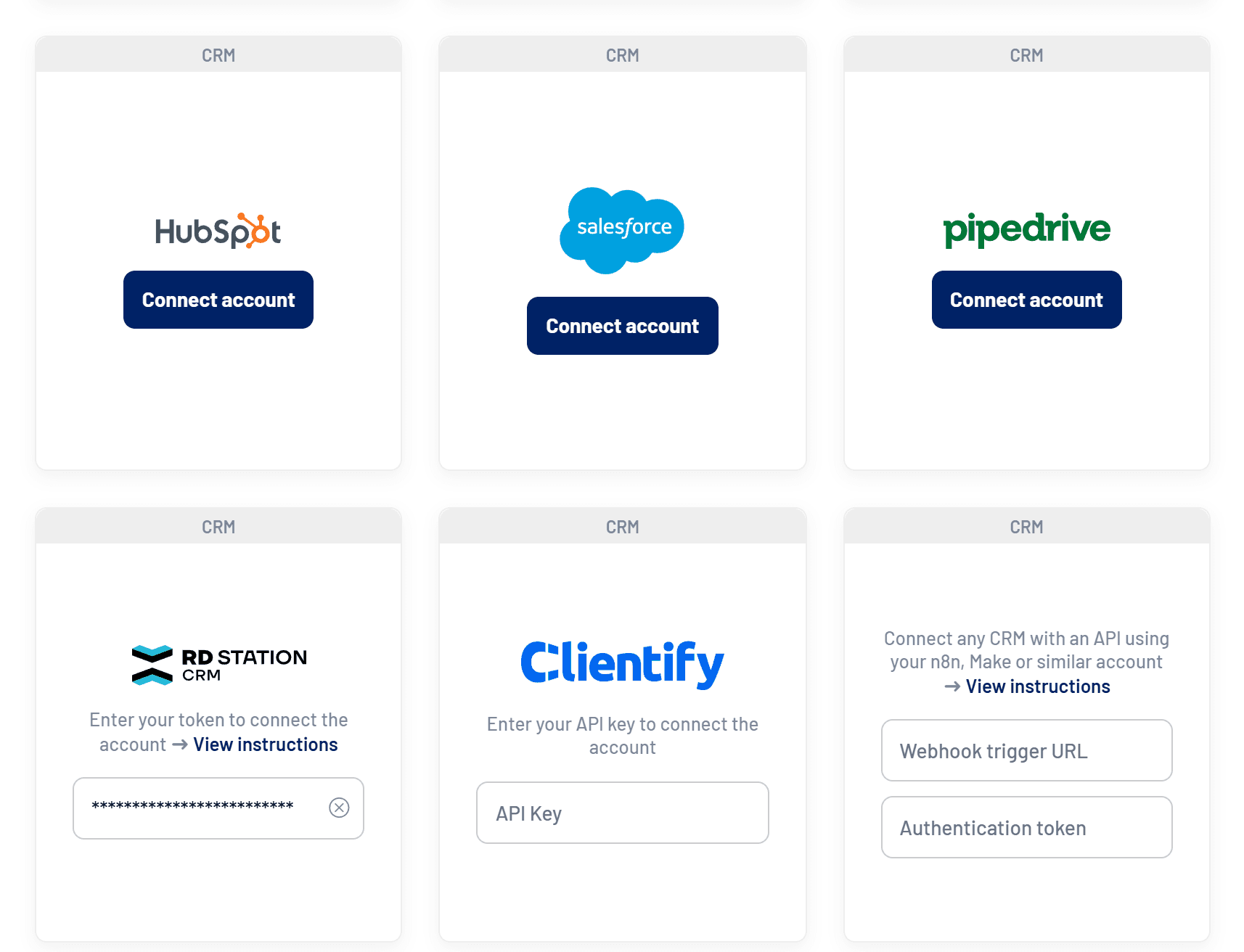
Choose your CRM
- How to connect HubSpot to LinkedScope: OAuth connection in a few clicks
- How to connect Salesforce to LinkedScope: OAuth, with record types as pipelines
- How to connect Pipedrive to LinkedScope: OAuth through the Pipedrive Marketplace
- How to connect RD Station CRM to LinkedScope: RD Station CRM instance token
- How to connect Clientify to LinkedScope: Clientify API key
- How to connect any CRM through n8n, Make or a webhook: Any CRM through n8n, Make or your own webhook
What happens after connecting
- First sync
LinkedScope imports deals created or closed in the last two years, with companies, owners, pipelines and stages. It usually takes a few minutes. - Matching with LinkedIn Ads
Each deal is linked to the matching company among those reached by your ads. - Daily refresh
LinkedScope syncs again once a day. The Sync CRM button forces a refresh whenever you need one.
How deals are linked to companies
LinkedScope looks for each deal’s company among the companies reached by your ads, using, from most to least accurate:
- the company’s LinkedIn page or ID, when your CRM has it;
- the company website domain;
- the company name;
- the deal name, only when deal name fallback matching is on.
Keeping company websites filled in your CRM is what improves the match rate the most.
When a deal counts as influenced
A deal is considered influenced when the company received at least the minimum number of impressions from your ads before the deal was created. The default is 7 impressions. Change it in Settings > Integrations > Deal influence impression threshold.

Analyze only some pipelines
- If your company runs several business units on the same CRM, select on the CRM card only the pipelines that should be analyzed.
- Without a selection, every pipeline counts, including ones created later.
- With a saved selection, new pipelines stay out until you select them.
- If a selected pipeline is deleted in the CRM, the card shows the Review pipelines alert. If all of them are deleted, no deal is considered and every user in the account is notified.
- In Salesforce, pipelines are opportunity record types. Any CRM has no selector: filter in your flow.
Connected user permissions
CRM APIs only return what the connected user can see. So connect with an admin or someone who sees every deal. After each sync, LinkedScope checks this permission and shows the Limited permission alert on the card when data may be missing.
| CRM | What is checked |
|---|---|
| HubSpot | Whether every required scope was granted |
| Salesforce | View All Data, View All on opportunities or non-private sharing |
| Pipedrive | Whether the user is an admin |
| RD Station CRM | Whether the token owner is an admin |
| Clientify | Whether the key owner is a company admin |
| Any CRM | Not applicable |
General rules
- One CRM per LinkedScope account at a time.
- Read-only: LinkedScope never changes your CRM.
- Only account owners and admins can open the Integrations tab.
- Credentials and tokens are stored encrypted.
- When you disconnect, CRM data stops showing in reports.
Frequently asked questions
Pipeline Impact numbers don’t match my CRM report. Why?
Pipeline Impact only shows deals from companies reached by your ads, respecting the impression threshold, the selected pipelines and the filter period. CRM reports usually include every deal.
I changed a deal in my CRM. When will it show up?
On the next daily sync, or right away if you click Sync CRM.
I changed the pipeline selection. Do I need to sync?
No. The new selection applies as soon as you save.
Need help?
Reach us at [email protected], through the Help menu inside LinkedScope or on our contact page.