
Signals are the criteria a company must meet to enter Spark Prospects. Combine intent, paid media, organic LinkedIn engagement, CRM and Target Accounts to bring in only the companies that make sense for your sales team.
- Where: Spark Prospects, Set signals button
- Who can change them: Owner, Admin and Manager
- When they apply: right away, with a new evaluation, and every Sunday after that
- Plan: Enterprise or higher
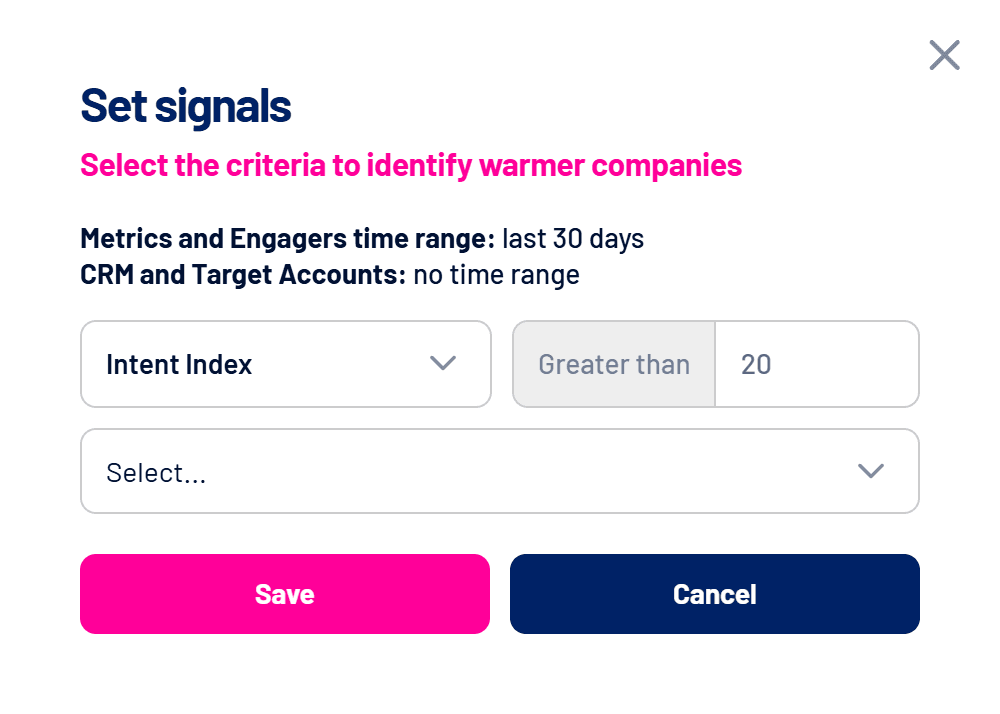
Available signals
| Signal | What it looks at | Period |
|---|---|---|
| Intent Index | The company’s Intent Index. See Intent Index: how it is calculated. | Last 30 days |
| Impressions | Impressions of your LinkedIn ads at the company. | Last 30 days |
| Paid engagements | Engagements with your LinkedIn ads, using the total LinkedIn reports. | Last 30 days |
| Reactions (Engagers) | Reactions from people at the company to the posts monitored in Engagers. See Engagers: who interacts with your LinkedIn content. | Last 30 days |
| Comments (Engagers) | Comments from people at the company on the posts monitored in Engagers. | Last 30 days |
| Open deal | Yes: the company has at least one open deal in the CRM. No: it has none. | No time range |
| Won deal | Yes: the company has at least one won deal in the CRM. No: it has none. | No time range |
| Target Account | Yes: the company is in Target Accounts. No: it isn’t. | No time range |
Numeric signals use Greater than: with Impressions greater than 100, a company with exactly 100 impressions doesn’t enter. A company must match every chosen signal at the same time.
How to set the signals
- Open Spark Prospects and click Set signals
The window shows the saved signals. With no custom signals, it shows the default Intent Index greater than 20. - Pick a signal in the Select… row
As soon as you pick one, a new Select… row appears for the next signal. Each signal can be used once. - Enter the value
For numeric signals, type the number. For Open deal, Won deal and Target Account, choose Yes or No. A chosen signal without a value blocks saving, with the notice to fill in the value of each selected criterion. - Remove what you don’t want
Use the remove icon next to the row. An empty Select… row is ignored. - Click Save
A new evaluation over the last 30 days starts right away. While it runs, the current list stays visible.
The default becomes part of the rule
If you add another signal and keep the Intent Index row, the saved rule requires both. To stop using the Intent Index, remove that row before saving.
Example combinations
- Warm companies outside the funnel: Intent Index greater than 20, Open deal = No and Won deal = No.
- Target Accounts reacting to your ads: Target Account = Yes and Paid engagements greater than 5.
- Account expansion: Won deal = Yes and Impressions greater than 200, to find customers still consuming your ads.
- Organic engagement: Comments (Engagers) greater than 0 and Target Account = Yes.
How the evaluation works
- It runs every Sunday at 03:00 UTC and right after each change to the signals.
- Media and Engagers metrics cover the last 30 days. CRM and Target Accounts use the current state, with no time range.
- Companies that match the signals enter the list or get their Most recent entry updated. The others stay on the list with their previous date.
- A deal counts as open when it has a stage and hasn’t been closed as won or lost.
- CRM signals require a complete CRM sync. Without it, the evaluation isn’t applied and the list doesn’t change.
Frequently asked questions
Do the Engagers signals work without the Engagers module?
No. Reactions and comments come from the posts monitored in Engagers. With no active sources, those values stay at zero and no company passes a Greater than signal. See How to add and manage Engagers sources.
Can I use CRM signals without a connected CRM?
No. Without a CRM, an evaluation with those signals isn’t applied. Connect your CRM first. See CRM integrations: how they work in LinkedScope.
The list didn’t change after saving.
The evaluation runs in the background and can take a few minutes. If the screen says the run couldn’t start, the rule is still saved and applies next Sunday.
Can new companies go straight to my CRM?
Yes. See How to send new Leads and Spark Prospects to your CRM.