
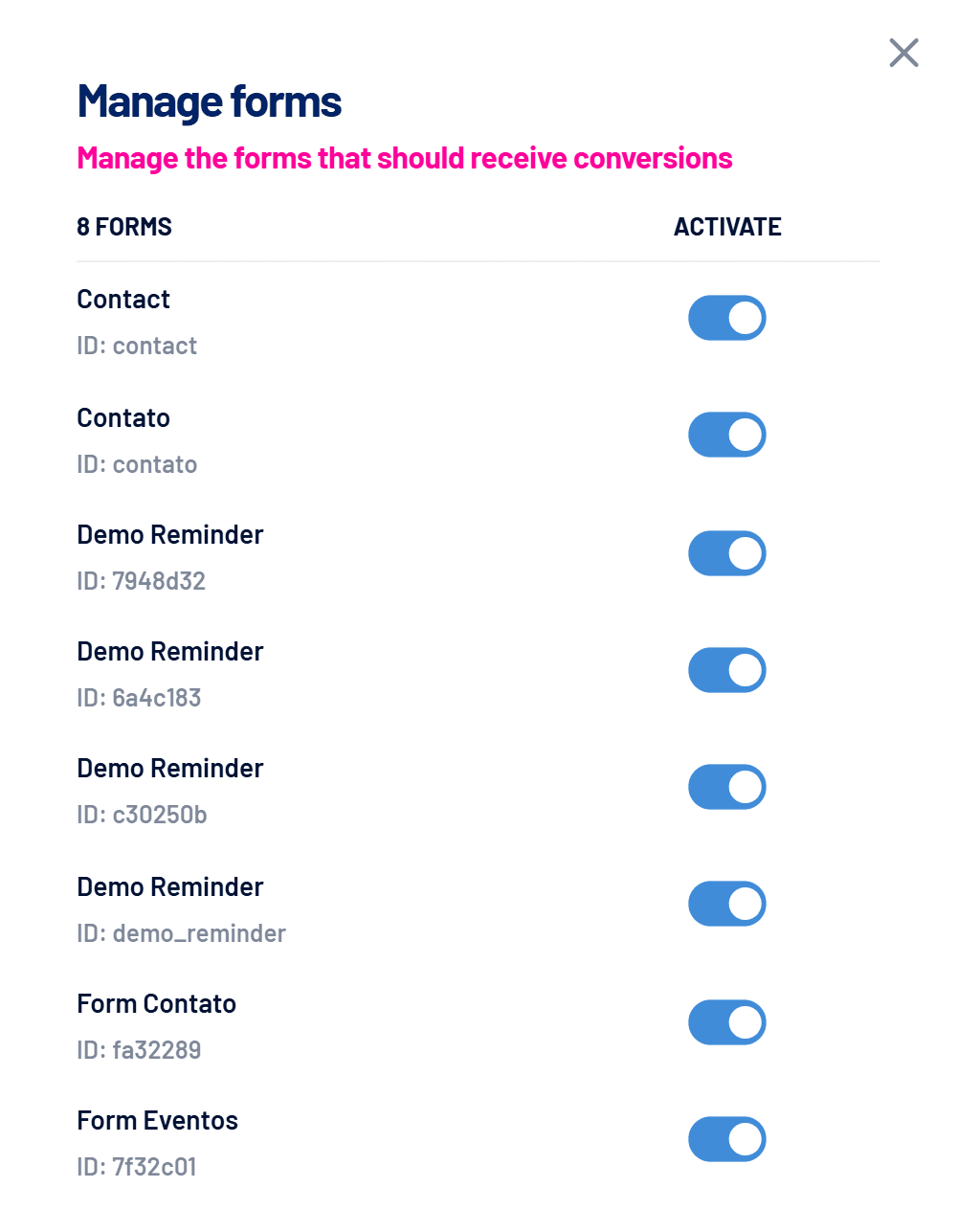
Every form on your website that sends leads to LinkedScope is registered in Manage forms. There you choose which ones keep capturing leads, for example to ignore newsletter or support forms.
- Where: Leads screen, Manage forms button
- Applies to: website forms
- Time: 1 minute
How a form gets on the list
There’s nothing to register: a form is added automatically on the first submission the script receives, with the name and ID coming from the website itself, and it starts active. See How to install the lead capture script on your website.
How to turn off capture for a form
- Open the Leads screen
Click Manage forms. - Switch the form’s toggle off
The change applies right away. - Done
New submissions from that form are discarded: they don’t become leads or generate notifications or conversions. Existing leads stay on the list.
When to turn it off
Newsletter, support, job application or login forms tend to clutter the lead list and campaign optimization. Keep only sales-opportunity forms active.
Frequently asked questions
Does reactivating a form recover submissions from while it was off?
No. Submissions made while the form was off aren’t stored.
Several forms show the same name.
LinkedScope uses each website form’s ID. Forms with the same name on different pages show up separately, and each one can be turned on or off.
Where do I see the leads from a specific form?
On the Leads screen, click the form’s name or filter by it. See Leads screen: sources, filters and qualification.