
Set how much you want to spend on LinkedIn Ads each month and let LinkedScope pause your campaigns automatically when spend reaches that amount. The following month, the same campaigns start running again on their own.
- Where: Settings > Budget
- Network: LinkedIn Ads
- Frequency: spend is checked every 6 hours
- Who can change it: Owner, Admin and Manager
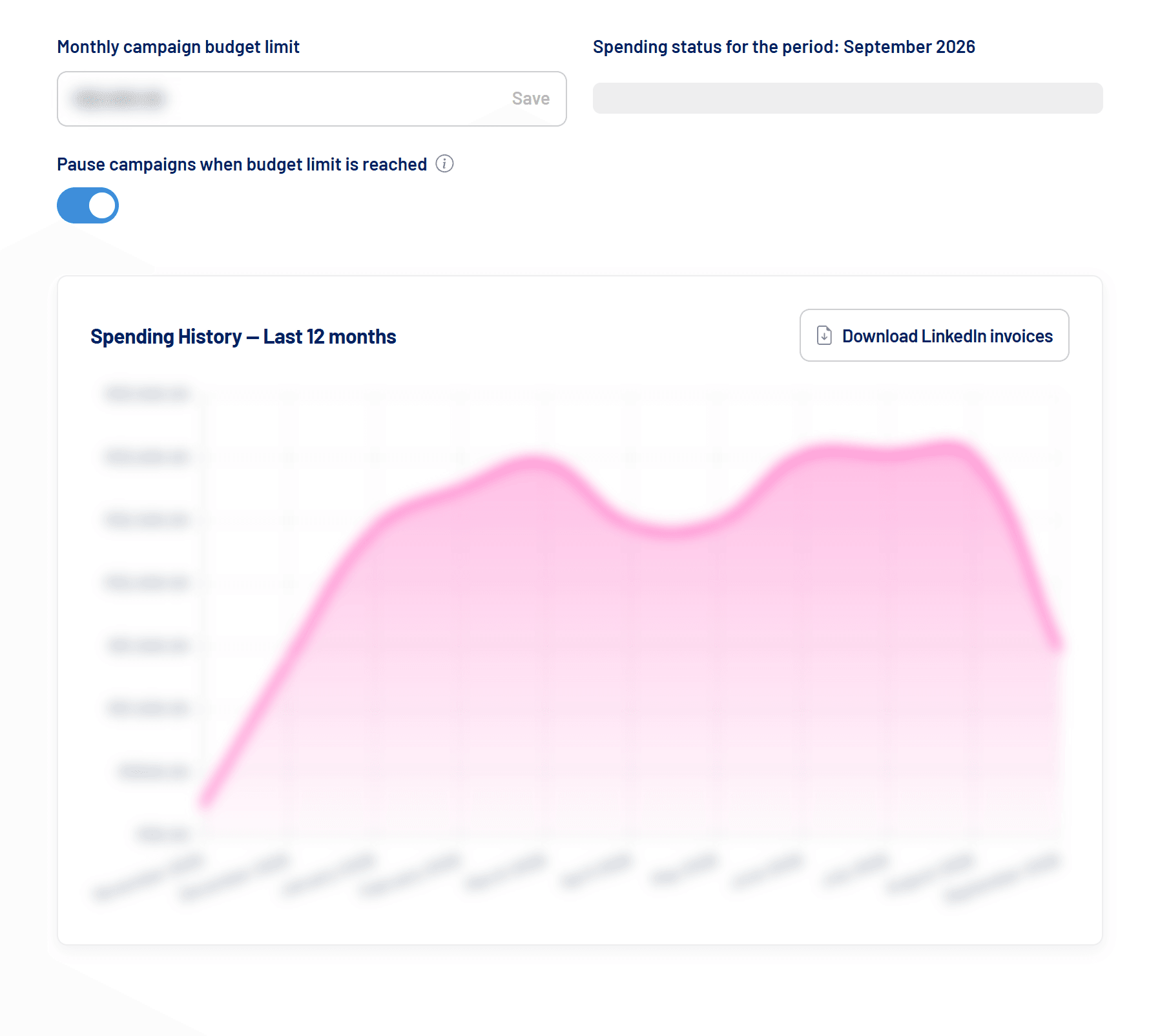
How to set the limit
- Open Settings > Budget
LinkedIn Ads must be connected. - Enter the monthly limit
Type the amount in Monthly campaign budget limit and click Save. The amount uses the currency of your LinkedIn ad account. - Switch on the automatic pause
Turn on Pause campaigns when budget limit is reached. Without this toggle, the limit only works as a reference and for the alerts.
How the pause works
- Every 6 hours, LinkedScope adds up the current month’s spend on the connected LinkedIn ad account.
- When spend reaches 85% and 100% of the limit, you get a notification.
- Once spend reaches the limit, every active campaign group is paused, and LinkedScope records which ones.
- At the first check of the following month (month change in UTC), exactly those groups are reactivated. One notification reports the pause and another the reactivation.
Spend can go slightly over the limit
Because the check runs every 6 hours and LinkedIn is still counting recent delivery, the month’s final amount can end up slightly above the limit. If you want a margin, set a limit a little below your real budget.
Common situations
| Situation | What happens |
|---|---|
| You raise the limit after a pause | Paused groups are reactivated right away. If spend is still above the new limit, the next check pauses them again. |
| You reactivate a group manually on LinkedIn | The next check pauses it again, as long as the month’s spend is above the limit. |
| You switch off the automatic pause after a pause | The groups stay paused. Reactivate them in Campaign Manager or raise the limit before switching the toggle off. |
| You change the LinkedIn ad account | The recorded pause belongs to the previous account and doesn’t mix with the new one. |
Spend status and history
Next to the limit, Spending status for the period shows how much of the limit has been used this month. Below it, Spending History shows the last 12 months, and the Download LinkedIn invoices button takes you to the ad account’s invoices.
Frequently asked questions
Does the pause apply to Google Ads and Meta Ads?
No. The limit and the automatic pause apply only to the connected LinkedIn ad account.
Does LinkedScope pause campaigns or campaign groups?
Campaign groups. Every campaign inside a paused group stops delivering.
Do I get a warning before the pause?
Yes, one notification when spend reaches 85% of the limit and another at 100%. See Notifications: what LinkedScope tells you and when.