
Import up to 10,000 contacts at once from a CSV, XLS or XLSX spreadsheet. The import runs in the background, and you get a notification with the summary when it finishes.
- Where: Contacts, Add contact button > Import contacts
- Formats: CSV, XLS or XLSX
- Limit: 10,000 rows per file
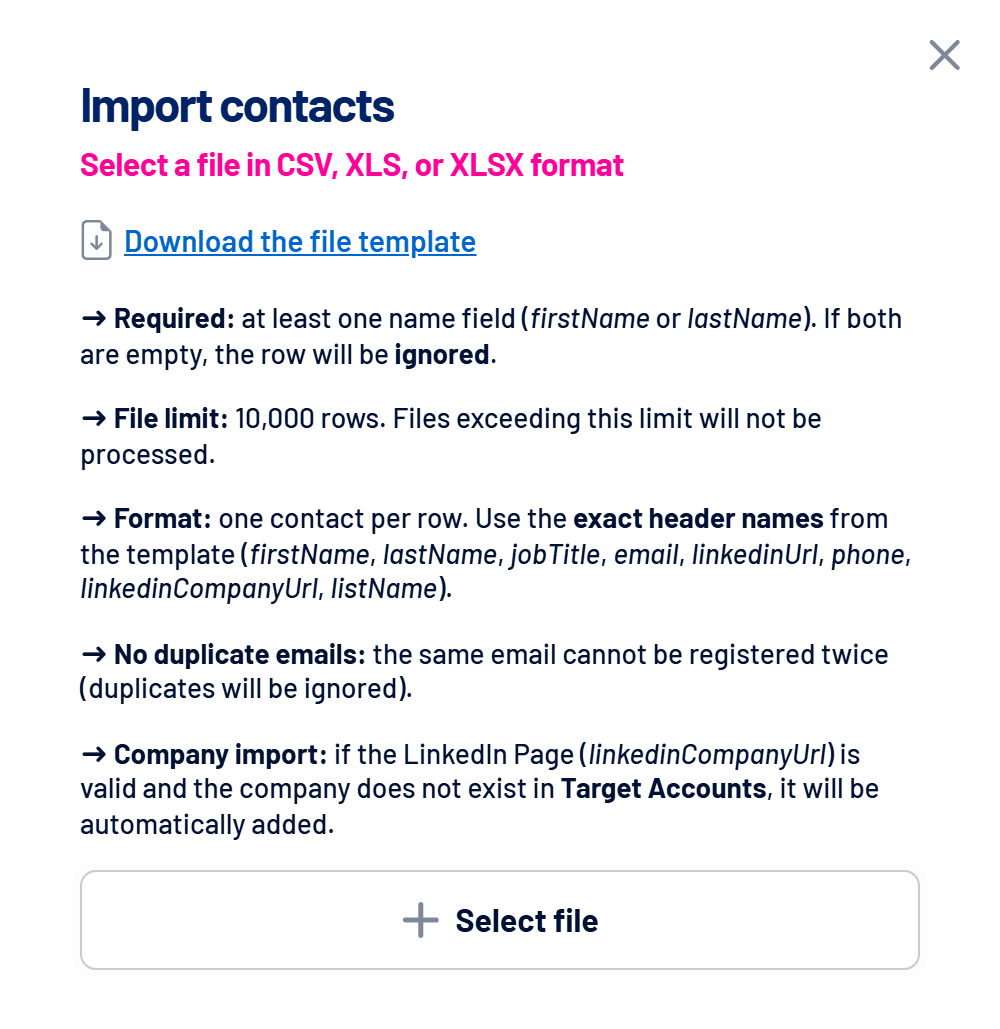
File columns
Download the template from the Download the file template link and keep the header exactly like this:
| Column | Content | Rule |
|---|---|---|
firstName | First name | Required if lastName is empty. |
lastName | Last name | Required if firstName is empty. |
jobTitle | Job title | Optional. |
email | Optional. Can’t repeat: duplicates are ignored. | |
linkedinUrl | LinkedIn profile URL | Optional. |
phone | Phone | Optional. Include the country code for better matching. |
linkedinCompanyUrl | Company’s LinkedIn page URL | Optional. If the company isn’t in Target Accounts, it is added. |
listName | Target Accounts list name | Optional. |
How to import
- Hover over Add contact and click Import contacts
The window shows the rules and the template link. - Select the file
One contact per row, up to 10,000 rows. - Map the columns
Check which file column matches each field. With Update existing contacts during import checked, existing contacts get the new data. Unchecked, they count as duplicates. - Follow the result
The import continues even if you leave the screen. At the end, a notification shows how many contacts were added, updated or skipped.
Improve audience matching
A work email and a phone with the country code raise each contact’s chance of being matched on LinkedIn, Google and Meta. See How to sync contacts as audiences on LinkedIn, Google and Meta.
Frequently asked questions
Some rows were skipped.
Rows with neither firstName nor lastName are skipped, as are repeated emails. The import summary lists the problems.
Can I import companies and contacts together?
Yes. Fill in linkedinCompanyUrl and, optionally, listName: new companies are added to Target Accounts. See How to create and use Target Accounts.