
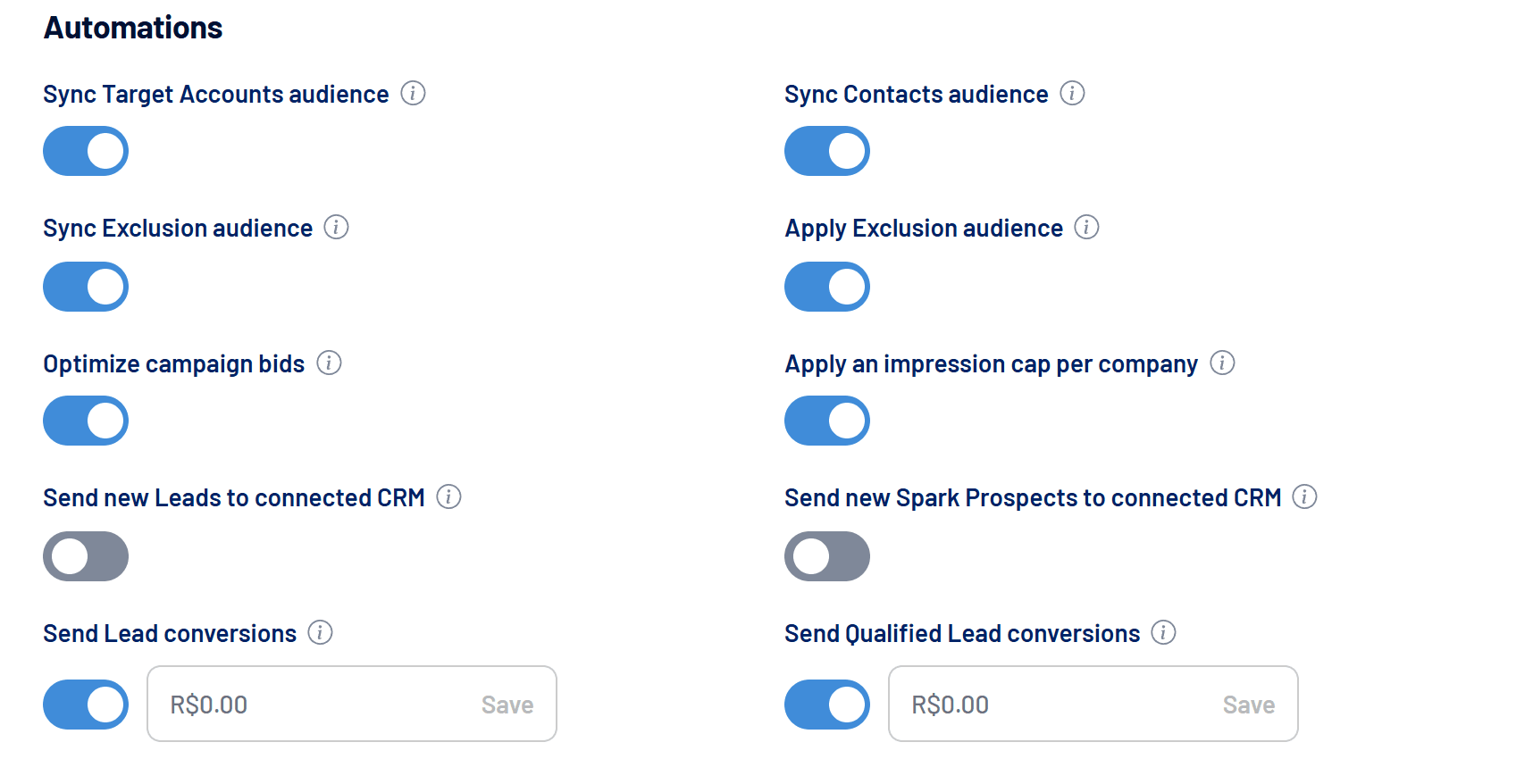
With two automations, LinkedScope takes opportunities straight to your CRM: each new Lead and each new Spark Prospect becomes a deal in the stage you choose, with the company and contact created or updated. Your sales team works in the CRM, with no spreadsheet exports.
- Where: Settings > Account, Automations section
- Who can change it: Owner and Admin
- Plan: Leads: Professional or higher. Spark Prospects: Enterprise or higher
- CRMs: HubSpot, Salesforce, Pipedrive, RD Station CRM and Clientify
- When it sends: Leads: as they arrive. Spark Prospects: when they enter the list, every Sunday
The two automations
| Automation | What it creates or updates in the CRM |
|---|---|
| Send new Leads to connected CRM | The contact and the company (when available), plus a new deal in the chosen stage, linked to both. |
| Send new Spark Prospects to connected CRM | The company and a new deal in the chosen stage, linked to it. |
Deals get names like [LinkedScope] Lead #1234 – Company and [LinkedScope] Spark Prospect #567 – Company, easy to filter in the CRM. Companies are looked up by domain and then by name, and contacts by email. When they already exist, they are updated (company name, domain and website; contact name, job title, email and phone) instead of duplicated.
How to turn it on
- Connect a CRM with write permission
The table below shows what each CRM requires. See also CRM integrations: how they work in LinkedScope. - Open Settings > Account
Both switches are in the Automations section, after bid optimization and the impression cap. - For Leads, choose the channels
LinkedIn Form Leads, Google Form Leads, Meta Form Leads and Website. Only checked channels create deals. - Choose the destination stage
The picker lists the stages of your CRM pipelines. New deals open there. - Turn the switch on
From then on, each new record is sent. Leads and Spark Prospects that already existed aren’t sent.
Write permission in each CRM
| CRM | What it takes |
|---|---|
| HubSpot | The LinkedScope app installed with every permission, including write access to companies, contacts and deals. If you connected before these permissions existed, disconnect and connect again. |
| Salesforce | A user allowed to create Accounts, Contacts and Opportunities who can see every opportunity. |
| Pipedrive | An admin user. |
| RD Station CRM | An admin user’s token. |
| Clientify | An API key from a company admin. |
| Any CRM | Not supported: the intermediary connection is read-only. |
Switch disabled?
Hover over it to see why. With no CRM connected, clicking opens Settings > Integrations. With a CRM lacking write permission, the tip asks you to reconnect with it. Any CRM connections don’t support this feature.
Which Leads are sent
- LinkedIn, Google and Meta Form Leads: leads from each network’s native forms.
- Website: every submission from your website forms, attributed to a network or not.
- Test leads and leads marked as spam never create a deal.
- Leads submitted before the ad account was connected, and imported afterwards, are only stored in LinkedScope.
No duplicates, with retries
- Each Lead or Spark Prospect creates at most one deal, even if the send is repeated.
- If the CRM is down or rejects the send, LinkedScope tries again at the following CRM syncs.
- While a payment is overdue, sends wait and resume once it’s settled.
Frequently asked questions
Can I choose the deal owner or amount?
Not yet. The deal opens in the chosen stage, and your CRM applies its own rules, such as default owner and automations.
Does a Spark Prospect that returns to the list create another deal?
No. Only companies new to the list create a deal. See Spark Prospects: the week’s hottest companies.
I turned the automation off. What happens to what was already sent?
Nothing changes in the CRM. The automation just stops sending new records.
Does this replace webhooks?
No, they complement each other. To send leads to other tools, use Webhooks: how to send LinkedScope data to other tools.