
Sources define where Engagers collects interactions from: company pages, ad accounts, your profile and specific LinkedIn posts. Here is how to add, pause and remove sources.
- Where: Engagers, Manage sources button
- Requirement: a LinkedIn account connected in Engagers
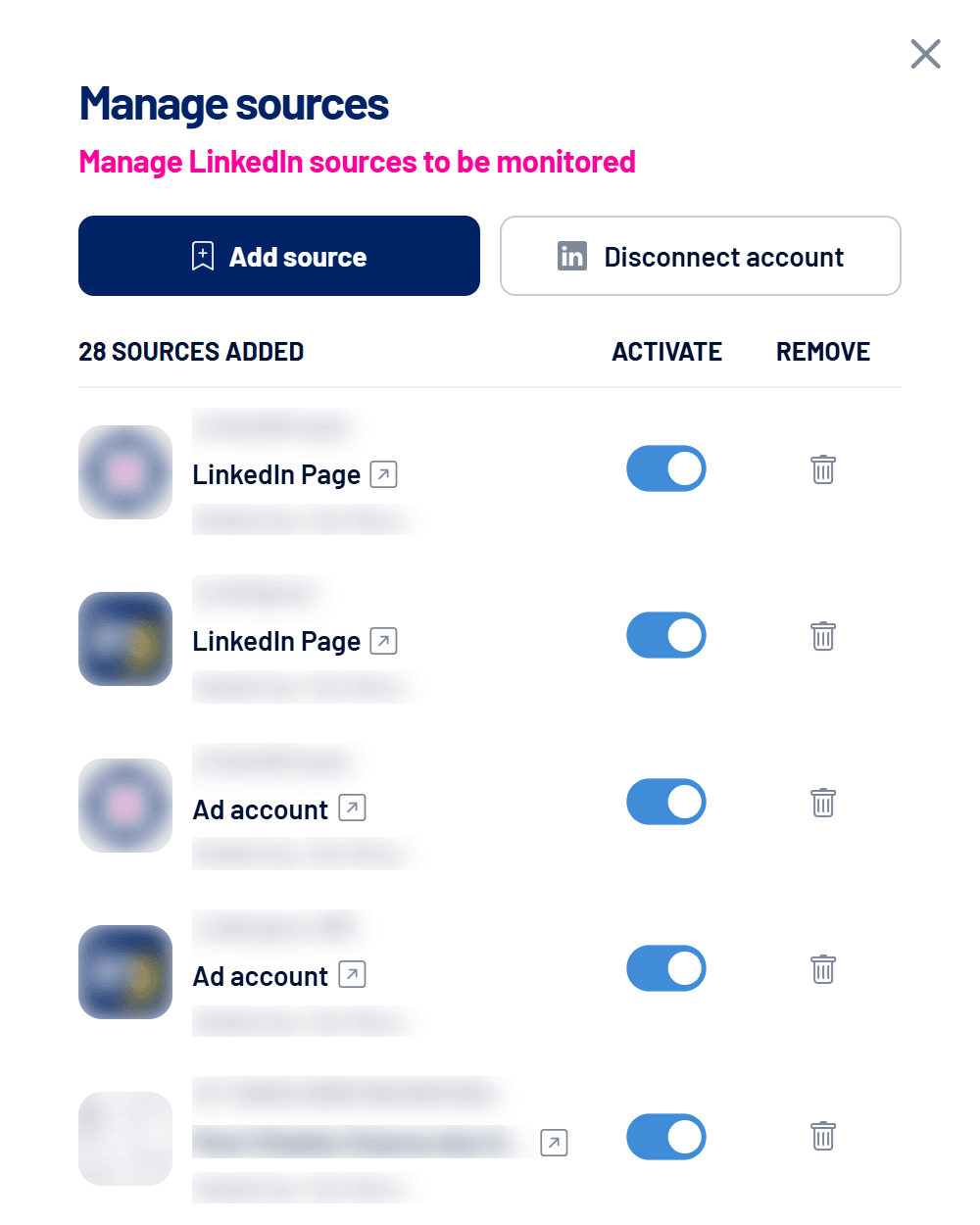
Source types
| Type | What is monitored |
|---|---|
| LinkedIn Page | Posts published by the company page. |
| Ad account | Sponsored posts, including those that don’t appear on the page (dark posts). |
| Profile | Posts from the connected profile (Use connected member option). |
| LinkedIn post | A specific post, from its link. Posts by people can only be added if they mention the company page, and you must be a manager of that page. |
How to add a source
- Open Manage sources
The button sits at the top of all three Engagers views. - Click Add source
Pick the page, ad account or profile from the list. For a post, choose LinkedIn post and paste the link (for example, linkedin.com/feed/update/urn:li:share:…). - Check the source on the list
It shows as active, with the name of who added it. Collection starts at the next refresh.
Pause and remove
- Activate: switch the toggle off to pause a source’s collection without losing what was already collected.
- Remove: the trash icon stops monitoring the source. Engagements already collected stay in the account and still appear in filters while they exist.
- Only whoever added the source, the Owner or an Admin can remove it.
Disconnect account
The Disconnect account button in the same window removes the LinkedIn connection Engagers uses. If it expires, you get a notification with a link to reconnect. See Notifications: what LinkedScope tells you and when.
Frequently asked questions
I can’t add someone’s post.
Posts by people only qualify if they mention your company page (for example, @YourCompany) and you are a manager of that page.
The refresh reported source errors.
This warning appears when a source or the connection has a problem that needs action, such as lost page permission. Deleted posts don’t trigger it.
Where do I see the results?
On the Engagers: who interacts with your LinkedIn content dashboard.