
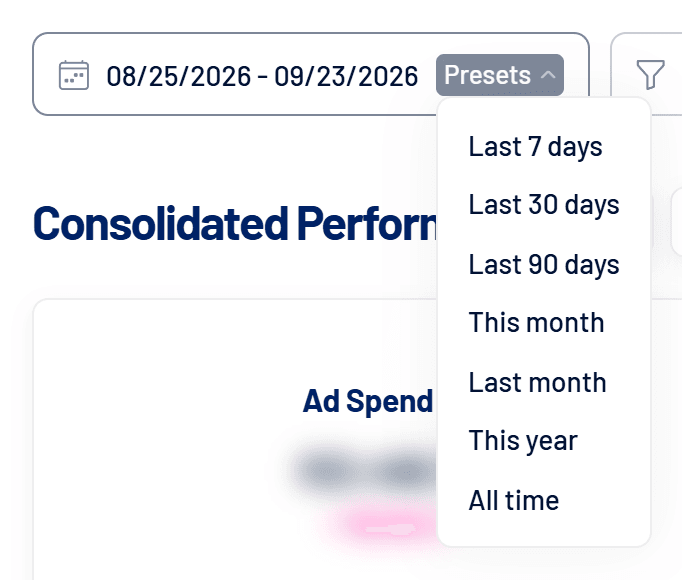
Almost every LinkedScope screen has a date range picker at the top. Here are the presets, how to pick custom dates and what All time covers on each screen.
- Where: top of Dashboard, Campaigns, Leads and other screens
- Default: last 30 days
How to choose the period
- Click the dates
The calendar opens so you can pick any start and end. - Or use Presets
Last 7, 30 or 90 days, This month, Last month, This year or All time. - Check the update
The screen reloads the data. The comparison with the previous period uses a range of the same length right before it.
What All time means
| Screen | Starts at |
|---|---|
| Dashboard | The date of the first activity across the connected networks. |
| Leads | The date of the account’s oldest lead. |
| Other screens | The date of the oldest campaign in the LinkedIn account. |
Each network follows its own history limit: for example, 37 months on Meta and 2 years for LinkedIn demographics. See How LinkedScope calculates metrics.
Reached Companies uses fixed windows
On the Reached Companies screen, the period is chosen from 7, 30, 90 or 180-day windows. See Reached Companies: how it works.
Frequently asked questions
Why did reach and frequency disappear?
LinkedIn doesn’t provide reach, frequency and penetration for periods of 92 days or more. Pick a shorter period.