
Here is how to create your LinkedScope account, activate it, sign in and get back in if you forget your password. At the end, a table lists the most common error messages and what to do about each one.
- Where: app.linkedscope.com/signup and app.linkedscope.com/login
- Time: about 3 minutes
- You’ll need: a work email or a Google account
How to create your account
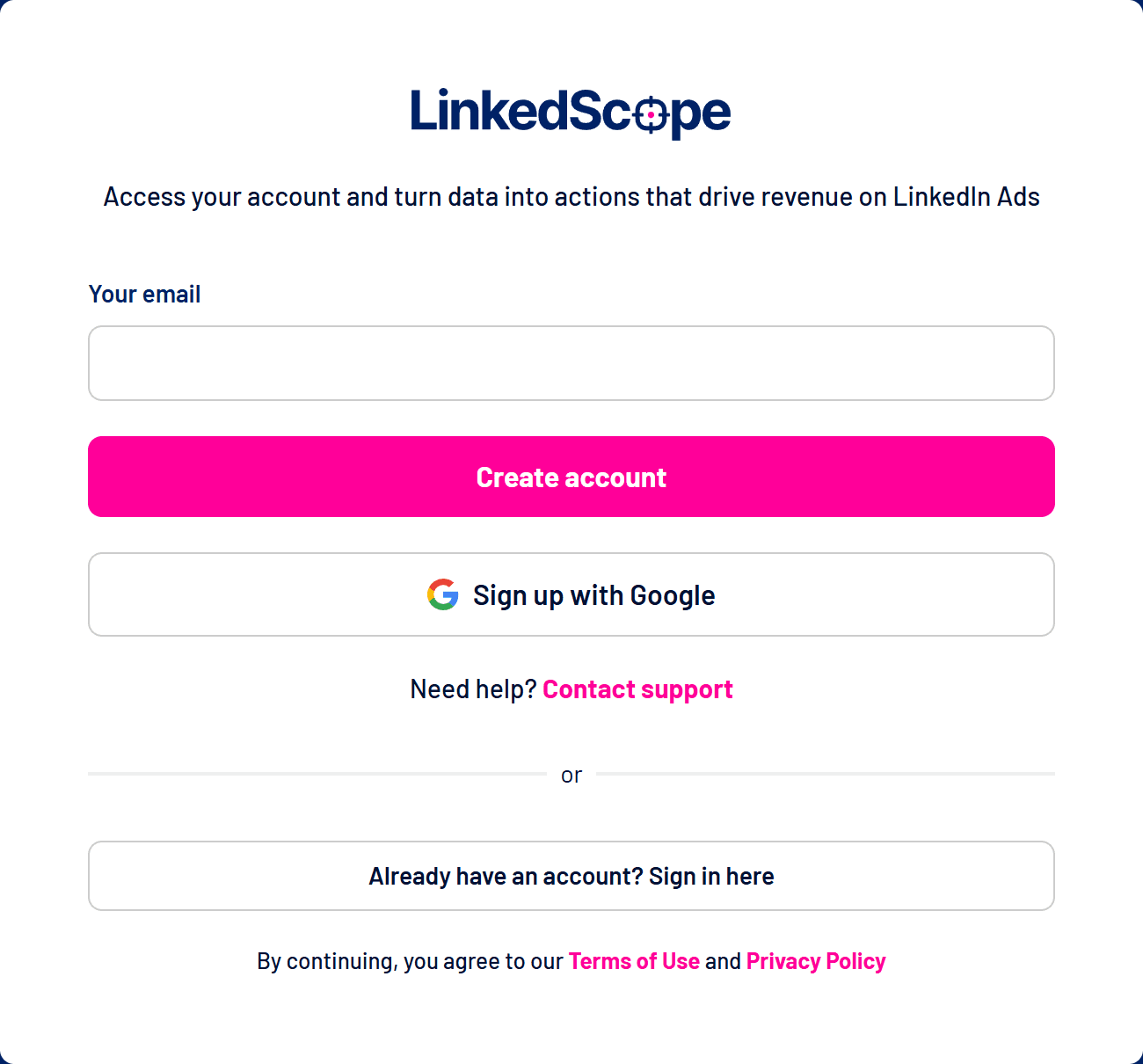
- Open the sign-up screen
Go to app.linkedscope.com/signup. To use another language, change it in the selector at the top right.
- Enter your email and click Create account
Or use Sign up with Google to register with your Google account, with no password to create. - Open the activation email
We send an email with the next steps. If it doesn’t arrive within a few minutes, check your spam and promotions folders or click Resend email once the countdown ends. - Complete your details and activate the account
From the link in the email, enter your name, position, company and a password, then click Activate account. - Connect your ad account
After the account-activated message, click Let’s go! and connect LinkedIn Ads. See How to connect LinkedIn Ads to LinkedScope.
Got an invitation?
If someone on your team already uses LinkedScope, ask for an invitation instead of creating a new account: you go straight into your company’s account. See How to invite users, set access levels and switch accounts.
How to sign in to LinkedScope
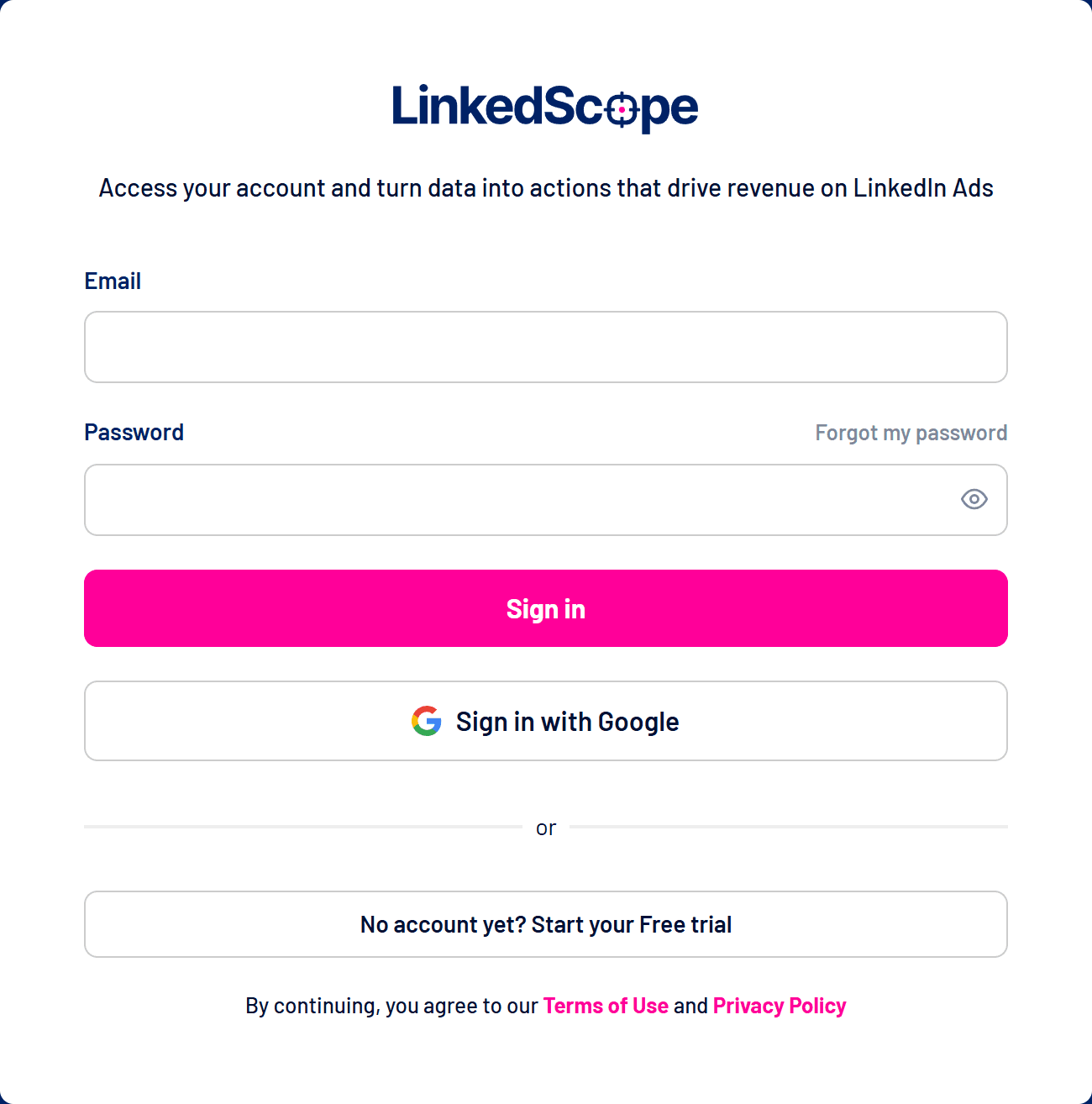
- Open the sign-in screen
Go to app.linkedscope.com/login.
- Sign in with email and password or with Google
Fill in your email and password and click Sign in, or use Sign in with Google if you registered through Google. - Check which account is shown
You land on your main account. If you have access to more than one, switch from the profile menu. See How to invite users, set access levels and switch accounts.
How to reset your password
- Click Forgot my password
The link sits above the password field on the sign-in screen. - Enter your email and click Send code
You receive a 7-digit verification code, valid for 30 minutes. - Type the code and click Continue
If the code doesn’t arrive, click Resend code once the countdown ends. - Set the new password
Type and confirm the new password and click Reset Password. Then sign in as usual.
Use a strong password
Mix uppercase letters, lowercase letters and numbers. To change your password while signed in, use Settings > Profile.
Error messages and what to do
| Message | What it means | What to do |
|---|---|---|
| User already exists. | This email is already registered. | Sign in or reset your password. |
| User not found. | There is no account with this email. | Check the email you typed or create an account. |
| User not confirmed. | The account has not been activated yet. | Open the activation email or ask for it again. |
| Invalid activation link. | The link has expired or was already used. | Click Request a new one. |
| Invalid or expired invitation. | The invitation is no longer valid. | Ask an account admin to resend the invitation. |
| Too many attempts. | There were too many attempts in a short time. | Wait a few minutes and try again. |
| Inactive account. / User blocked. | The account or the user was deactivated. | Contact the account admin or support. |
Frequently asked questions
Can I use a personal email?
You can, but we recommend your work email: it makes it easier for the team to know who is who and to hand the account over if someone leaves.
I signed up with Google. Do I have a password?
You don’t need one: keep using Sign in with Google. If you also want to sign in with a password, use Forgot my password to create one.
Does LinkedScope have a trial?
Yes, every new account starts with a 14-day free trial. See the details in Plans, trial and subscription.