
The Profile and Account tabs, in Settings, hold your personal details and your company’s details. Here is what each field does and how to change it.
- Where: Settings > Profile and Settings > Account
- Who can change it: Profile: every user. Account: Owner, Admin and Manager
- Time: 2 minutes
Profile tab: your details
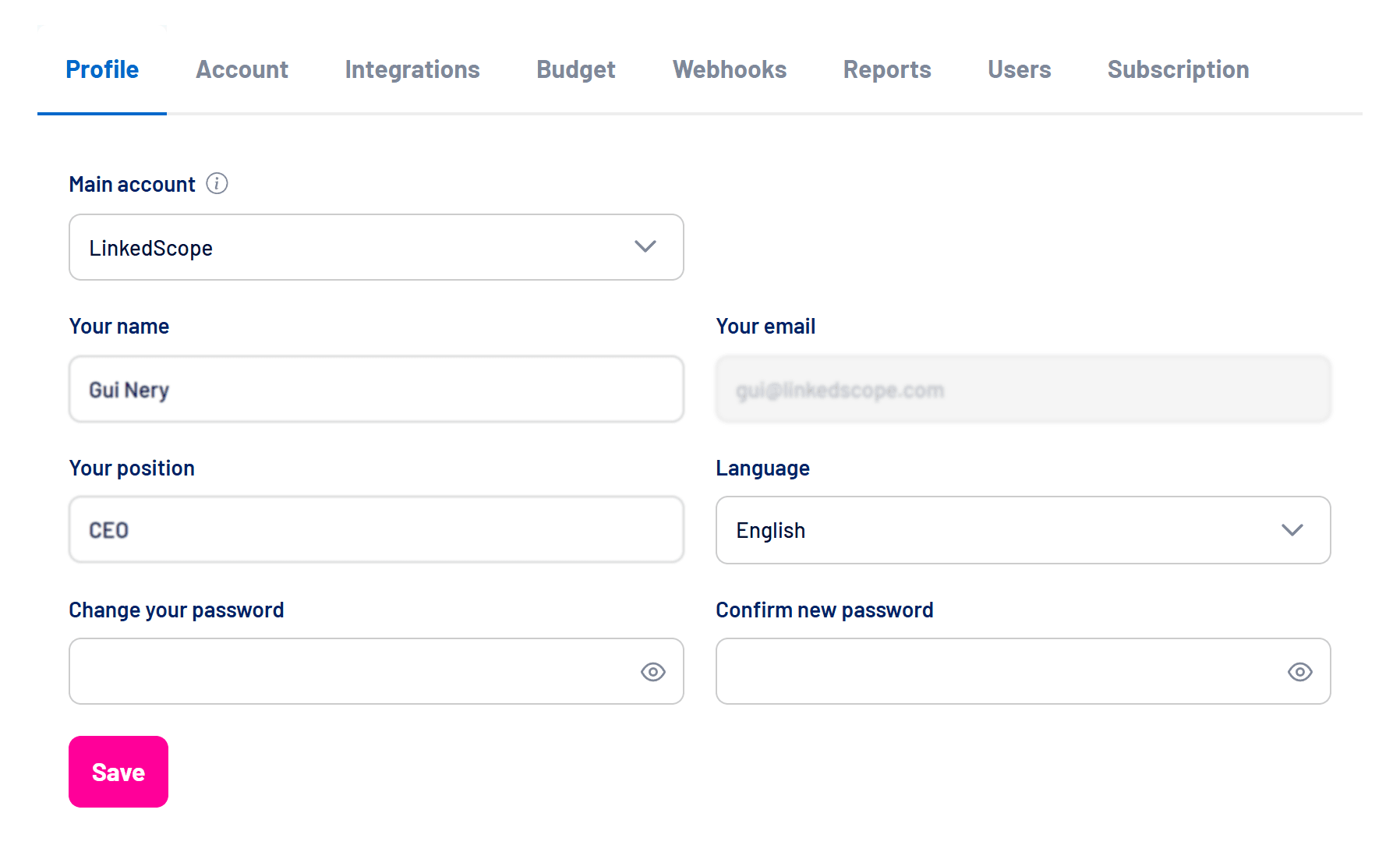
| Field | What it is for |
|---|---|
| Main account | The account shown by default whenever you sign in. Useful if you have access to several accounts. |
| Your name | How you appear to your team and in the platform greetings. |
| Your email | This is your login and can’t be changed here. |
| Your position | Helps your team know who is who. |
| Language | Platform language: Portuguese, English or Spanish. |
| Change your password / Confirm new password | Changes your password. Leave blank if you don’t want to change it. |
- Open Settings > Profile
Settings sits at the bottom of the side menu. You can also get there from the profile menu at the top right. - Change the fields you want
To change your password, fill in both password fields with the same value. - Click Save
A new language applies right away. The main account takes effect at your next sign-in.
Account tab: company details
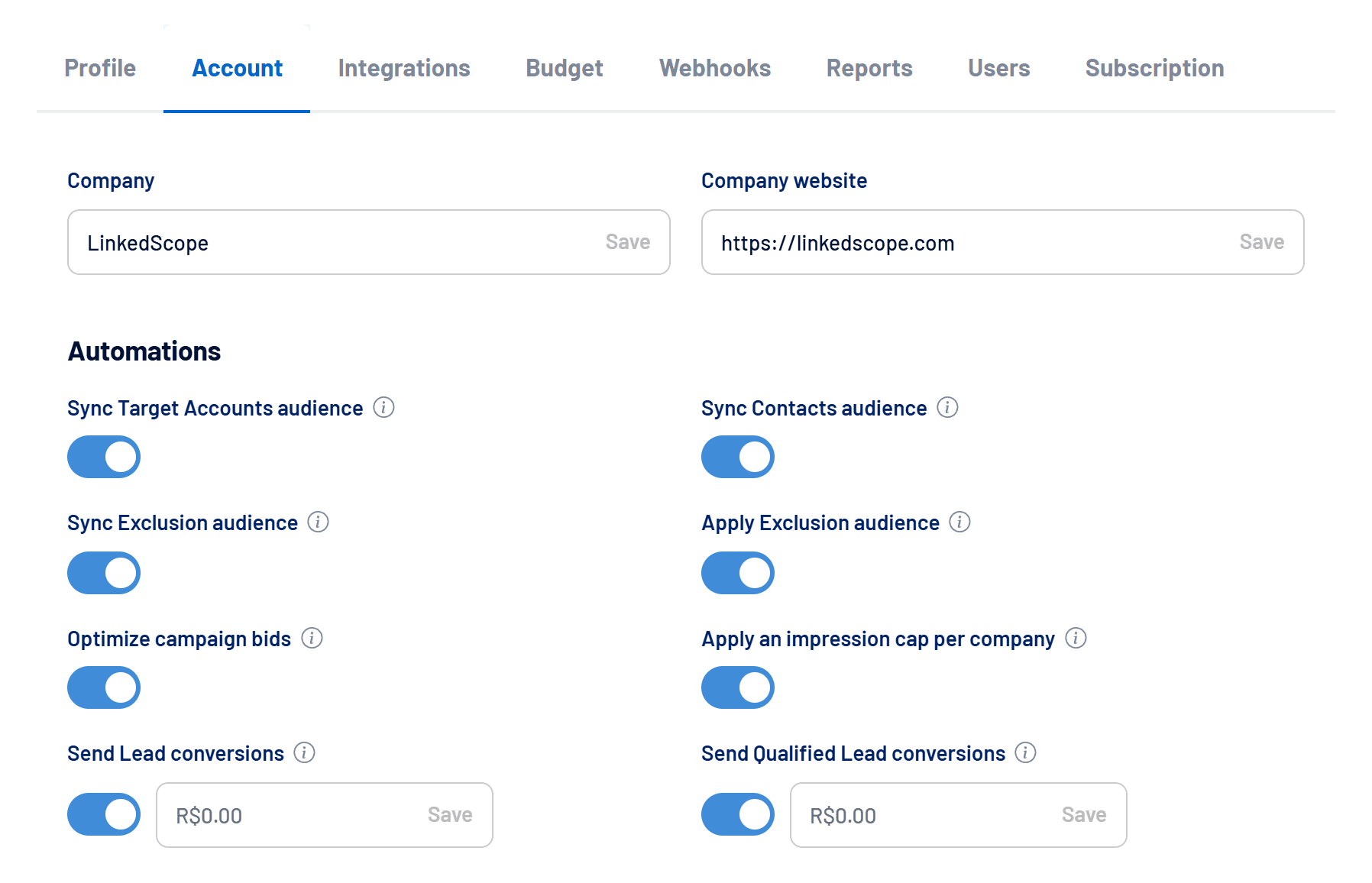
The Company and Company website fields identify the account. Each one has its own Save button inside the field.
- Auto-fill: when you connect LinkedIn Ads, LinkedScope completes the name and website from the company’s LinkedIn page, but only if they are empty or still hold the default name (such as “…’s account”). A name you set is never overwritten.
- Website format: the address is stored as the domain only, without “www.” or paths. For example,
https://www.company.com/contactbecomeshttps://company.com. - Optional website: you can leave the website blank. The company name is required.
Further down the same tab are three more sections:
- Automations: automatic routines for audiences, bids, budget and conversions. See Account automations: what each one does.
- Website lead capture: the script to install on your website. See How to install the lead capture script on your website.
- Authorized domains: the websites allowed to send leads to the account.
Frequently asked questions
How do I change my login email?
The email can’t be edited. Ask an admin to invite the new email and remove the old one. See How to invite users, set access levels and switch accounts.
Does the language also change emails and reports?
The Profile language sets the platform language for you. Scheduled executive reports have their own language, set when you schedule each report.
I can’t see the Account tab.
It is available to the Owner, Admin and Manager levels. Ask one of them to make the change or to change your access level.