
Invite colleagues to your LinkedScope account, choose what each person can do and, if you have access to more than one account, switch between them without leaving the platform.
- Where: Settings > Users and the profile menu at the top right
- Who can invite: Owner and Admin
- Time: 2 minutes
How to invite users
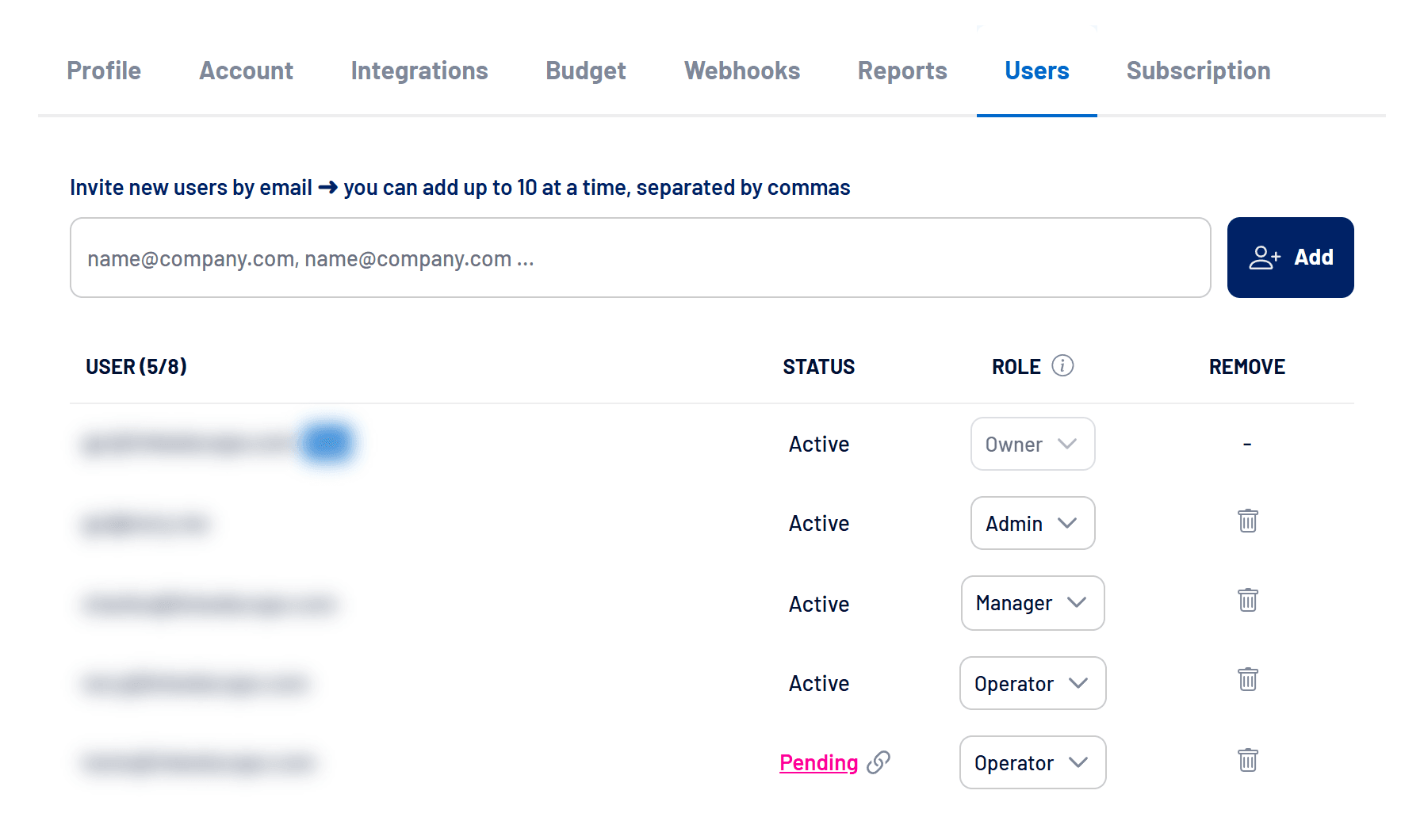
- Open Settings > Users
The tab appears for the Owner and Admin levels. - Type the emails
You can invite up to 10 people at a time, separating the emails with commas. - Click Add
Each person gets an invitation email and shows up in the list as Pending until they activate their access. - Set each person’s level
Pick Admin, Manager or Operator in the Level column. The change applies right away.
The counter next to User (for example, 5/8) shows how many users the account has and your plan’s limit.
Invitation didn’t arrive?
On the pending user’s row, use the icon to resend the invitation or copy the activation link and send it through another channel.
Access levels
| Level | What they can do |
|---|---|
| Owner | Owns the account. Has full access, and their level can’t be changed or removed. |
| Admin | Full access, including Integrations, Users and Subscription. |
| Manager | All features except Integrations, Users and Subscription management. |
| Operator | Same as Manager, and also no Budget, Webhooks, Reports, audience sync, pausing or activating campaigns and ads, managing Reached Job Titles or generating Insights. |
Nobody can change their own level. To remove someone, click the trash icon on their row and confirm.
How to switch accounts
If you were invited to more than one account (common for agencies), switch without signing out:
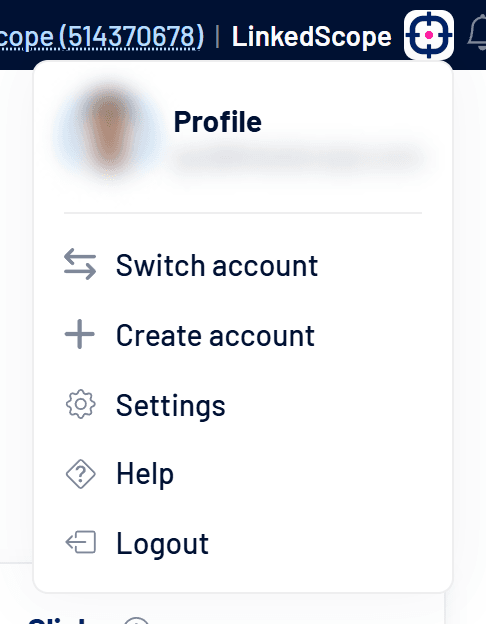
- Hover over the account name
It sits at the top right, next to the company logo. - Click Switch account
A list opens with every account you can access. You can search by name or ID. - Select the account
The platform reloads in the chosen account. Tags mark the Current account and those that are Inactive or Past due.
To always land on a specific account, set it as your Main account in Settings > Profile. See How to set up your profile and account details.
How to create a new account
In the same menu, Create account opens a form to register another company with your user. This is how you follow another ad account, since each LinkedScope account connects one account per network.
Option disabled?
If you are already the master user (Owner) of another account, the option is disabled. Ask an Owner or Admin of the other company to invite you.
Frequently asked questions
Can I transfer account ownership?
Changing the Owner isn’t done on screen. Contact support.
We hit the user limit. What now?
Remove users who no longer use the platform or change plans. See Plans, trial and subscription.
Does a removed user lose the data they created?
No. Lists, audiences and settings belong to the account and stay there.