
Connect Salesforce to LinkedScope to match your opportunities with LinkedIn Ads and see which accounts reached by your ads turned into pipeline, won or lost revenue. The integration is read-only: LinkedScope never creates, changes or deletes anything in Salesforce.
- Time: 5 minutes
- Who can do it: LinkedScope account owner or admin
- Method: OAuth authorization in Salesforce
- Access: Read-only
Before you start
- Owner or admin access to the LinkedScope account, to see the Integrations tab.
- A plan that includes CRM integration. If the card shows a Blocked button, your current plan does not include CRM. Check Settings > Subscription.
- Your LinkedIn Ads account connected. Without it, LinkedScope has nothing to match your CRM data against.
- A production Salesforce org with API access (Enterprise, Unlimited, Performance or Developer edition, or Professional with the API add-on). Sandbox orgs are not supported.
- A user who can see every opportunity: with the View All Data permission, View All on the Opportunity object, or in an org whose default opportunity sharing is not private.
One CRM at a time
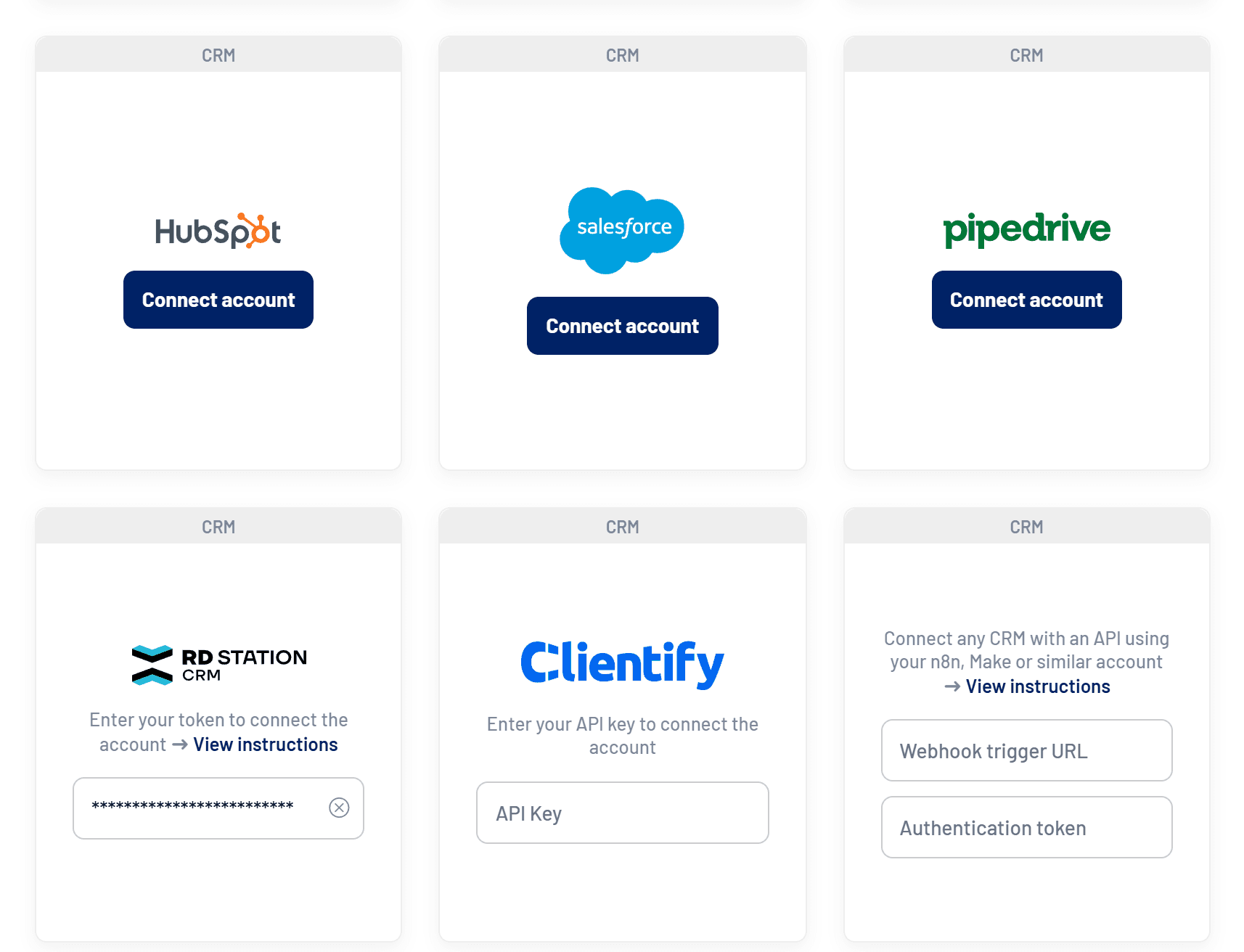
Each LinkedScope account connects to one CRM at a time. If another CRM is already connected, the Salesforce button is disabled with the message “Disconnect the current CRM to connect a new account”.
Connect Salesforce
- Open integrations
In LinkedScope, click Settings in the sidebar and open the Integrations tab.
- Click Connect account
On the Salesforce card, click Connect account. You will be taken to the Salesforce login screen.
- Log in to Salesforce
Sign in with the user that the integration should use. - Allow access
Review the permissions and click Allow. - Confirm the connection
Salesforce sends you back to LinkedScope with the message Account connected successfully. The card now shows the Disconnect account button.
First sync
Right after connecting, LinkedScope starts importing opportunities from the last two years. This usually takes a few minutes, longer for CRMs with many records. You can keep using the platform in the meantime.
Requested permissions
Every scope is read-only:
| Scope | Purpose |
|---|---|
api | Read data through the REST API |
refresh_token | Keep the connection active without logging in again |
web | Browser authorization |
Configure after connecting
With the CRM connected, these options appear on the Integrations tab.

- Opportunity record types selection: on the Salesforce card, choose which opportunity record types are analyzed. By default all of them count, including ones created later. The selector only shows up when there is more than one.
- Deal influence impression threshold: the minimum number of impressions a company must have received before the deal was created for it to count as influenced. The default is 7.
- Deal name fallback matching: when the company domain and name in the CRM don’t match LinkedIn data, uses the deal name as a last resort.
- Sync CRM: LinkedScope syncs automatically once a day. Use the button to force an update after big changes in the CRM.
To understand how LinkedScope links deals to companies, see CRM integrations: how they work.
What data LinkedScope reads
LinkedScope reads only what it needs to measure LinkedIn Ads influence, considering opportunities created or closed in the last two years:
| Data | What it is used for |
|---|---|
| Opportunities | Name, amount, stage, record type, create and close dates, won/lost status and owner |
| Accounts | Name and website of the account linked to each opportunity, for company-level attribution |
| Stages and record types | Active opportunity stages and record types, which act as pipelines |
| Users | Name and email of active users, to show who owns each opportunity |
Credentials are stored encrypted and are never shown back on screen.
Where the data shows up
After the first sync, Salesforce data feeds these areas:
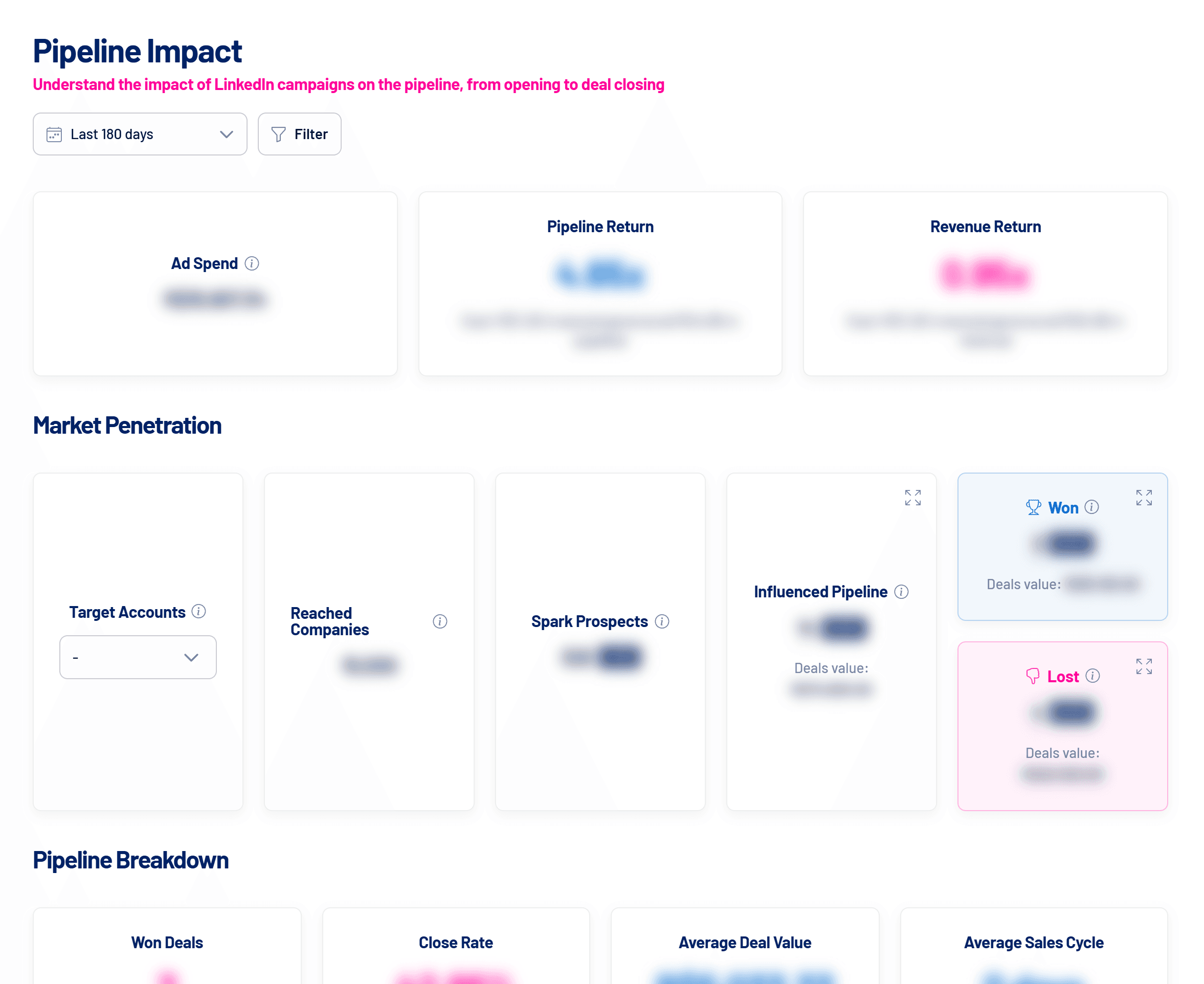
- Pipeline Impact: open, won and lost pipeline from companies reached by your ads, with the list of opportunities.
- Reached Companies: which companies reached by your ads have opportunities in the CRM.
- Target Accounts and Spark Prospects: engaged accounts that have not become opportunities yet, or that are already in progress.
Limited permission alert
After every sync, LinkedScope checks whether the connected user can see every opportunity. If not, the card shows the pink Limited permission alert and every user in the account gets a notification.
In Salesforce: The connected user has no View All Data permission (nor View All on opportunities) and opportunity sharing is private, so some opportunities may be missing. Grant the access or reconnect with another user. The alert flags a risk, not proof that data is missing.
Disconnect or switch CRM
- In Settings > Integrations, click Disconnect account on the Salesforce card.
- CRM data stops showing in reports and syncs stop. Nothing is deleted in Salesforce.
- To switch CRMs, disconnect the current one and connect the new one. The opportunity record types selection is kept only if you reconnect the same Salesforce account.
Revoke access in Salesforce
- In Salesforce, open your personal settings.
- In Quick Find, type Advanced User Details and open the page.
- In the OAuth Connected Apps section, click Revoke next to LinkedScope.
Admins can also revoke access for the whole org in Setup > Connected Apps OAuth Usage.
Frequently asked questions
My org runs several sales processes. Can I choose which ones count?
Yes. In Salesforce, opportunity record types act as pipelines in LinkedScope. After connecting, select on the Salesforce card only the record types that should be analyzed.
Can I connect a sandbox to test?
No. The connection uses Salesforce’s production login (login.salesforce.com). Use a production or Developer Edition org.
How long until the data shows up?
The first sync starts right after connecting and usually takes a few minutes. CRMs with many records can take longer. After that, LinkedScope syncs once a day.
Can I connect two CRMs at the same time?
No. Each LinkedScope account uses one CRM at a time. To switch, disconnect the current one and connect the new one.
Does LinkedScope change anything in my CRM?
No. The integration is read-only.
Why aren’t some opportunities linked to LinkedIn companies?
LinkedScope needs to recognize each opportunity’s company. Keep the company name and website filled in the CRM. If matches are still missing, turn on deal name fallback matching in Settings > Integrations.
Can I limit the analysis to one business unit?
Yes. Select only that unit’s opportunity record types on the Salesforce card. Opportunities from other opportunity record types stop counting in reports, with no new sync needed.
Need help?
Reach us at [email protected], through the Help menu inside LinkedScope or on our contact page.