
The Leads screen gathers every conversion from your website and from native LinkedIn, Google and Meta forms, with each lead’s source, assigned company and your rating. It’s where Qualified Lead events for the networks come from.
- Where: Leads menu
- Sources: website, LinkedIn Lead Gen Forms, Google and Meta Lead Ads
- Default period: last 30 days
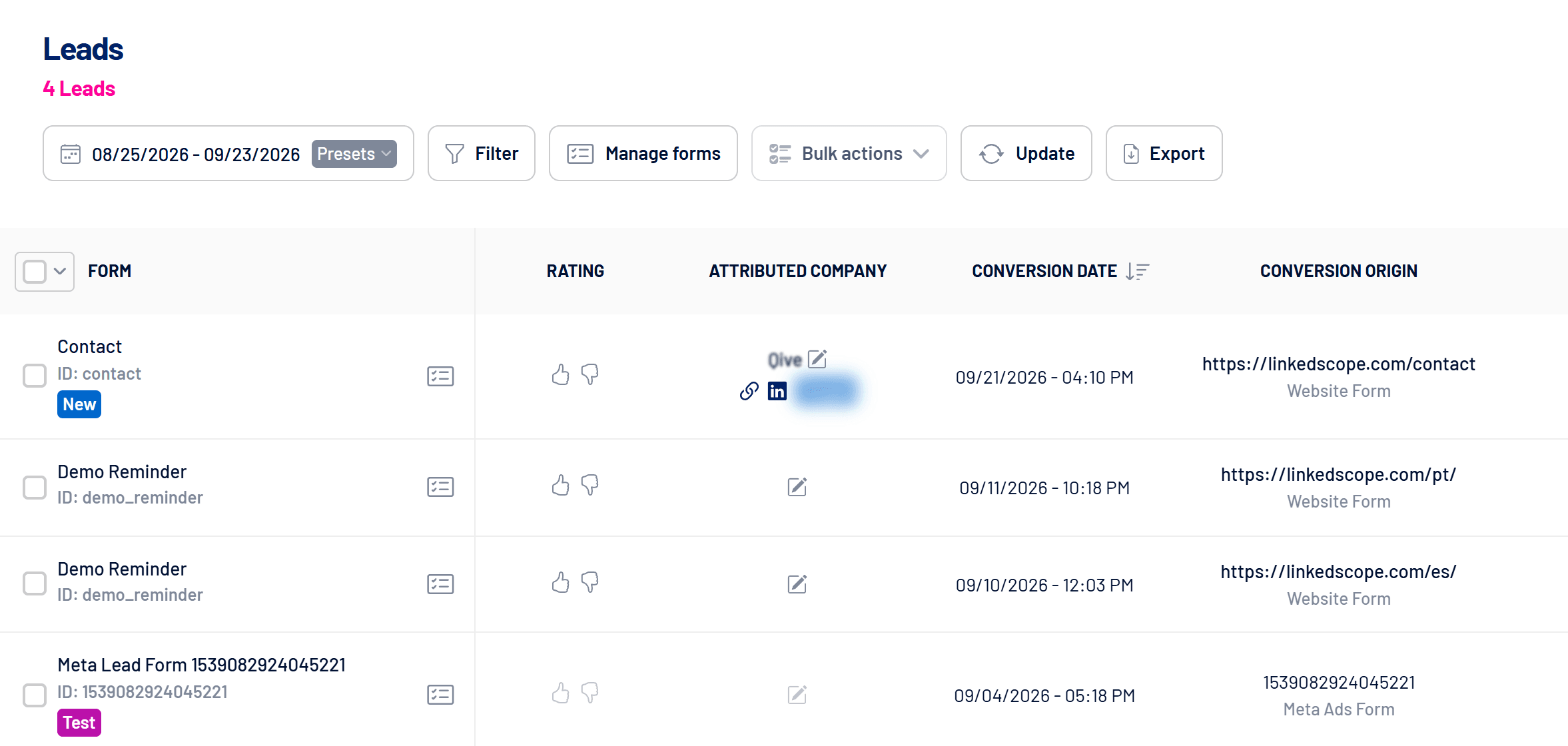
What the screen shows
| Column | What it means |
|---|---|
| Form | The form’s name and ID. Click the name to see every answer to that form in a table. |
| Rating | Thumbs up (qualified) or thumbs down (disqualified). |
| Assigned company | The lead’s company, identified from the company field or the corporate email domain. The pencil lets you assign or change the company. |
| Conversion date | When the lead converted. |
| Conversion location | The website page (without parameters) or the native form, with the source below it (for example, Website Form or Meta Ads Form). |
| Source, Medium and Campaign | The UTMs of the visit that produced the lead, when present. |
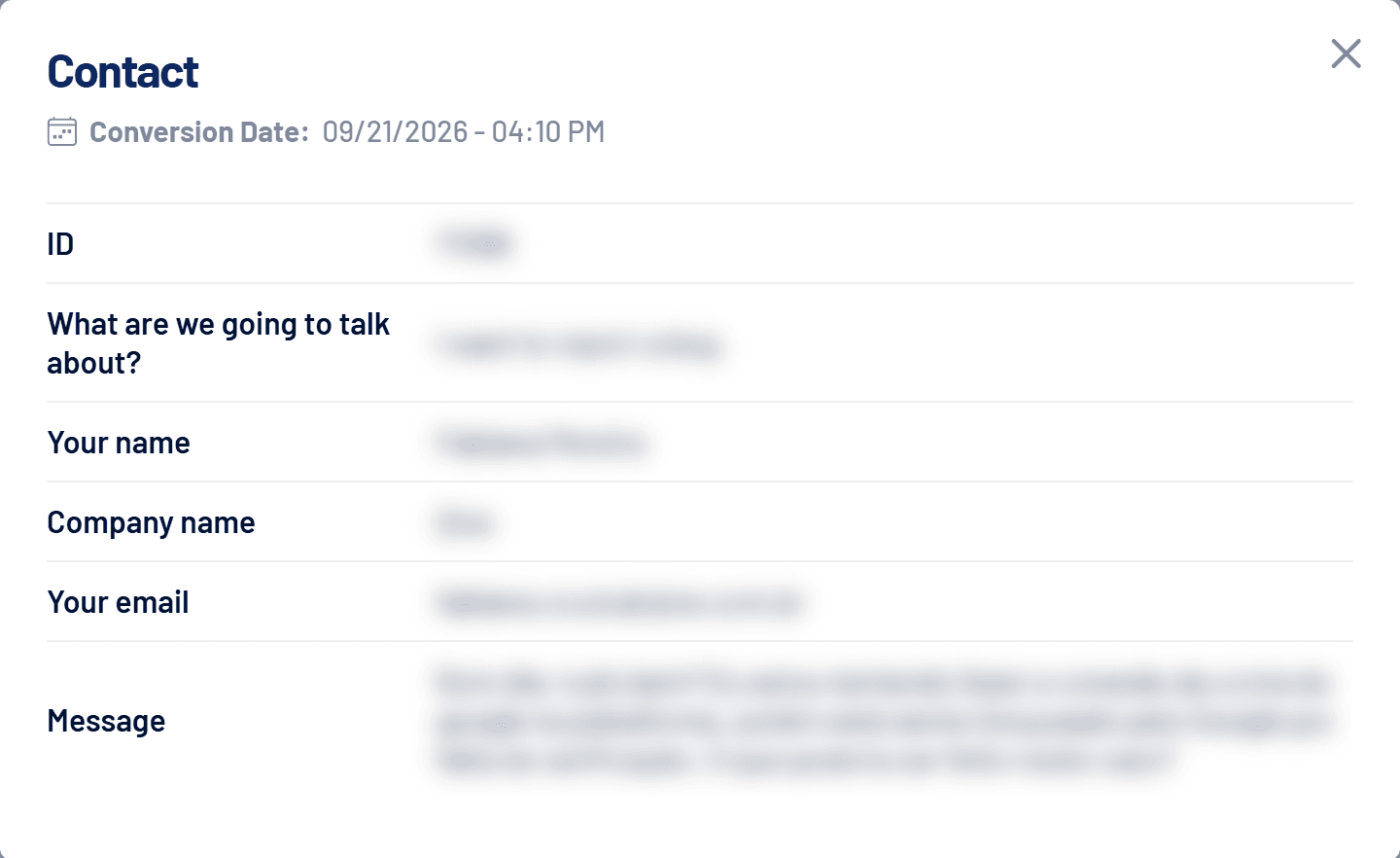
The form icon next to the name opens the Conversion data, with all of that lead’s answers.
Tags
- New: a lead that arrived recently.
- Spam: a website submission with bot signals, such as a filled hidden field, submission in under 3 seconds, an invalid email, no useful field or many submissions in a row. It doesn’t generate a conversion for the networks.
- Test: a test lead from the networks’ tools. It doesn’t generate a conversion or count in reports.
How to rate leads
- Click thumbs up to qualify
If Qualified Lead conversion sending is on, the event goes to the connected networks right away. See How to send Lead and Qualified Lead conversions to ad networks. - Click thumbs down to disqualify
The lead stays on the list, marked as disqualified. - Qualified a lead marked as spam?
The spam mark is removed and both the Lead and Qualified Lead events are sent.
Filter, refresh and export
- Filter: by form, company, campaign, source, medium and origin.
- Manage forms: turns capture on or off for each website form. See How to manage lead forms.
- Update: fetches new native form leads now, without waiting for the automatic check. See Native forms: LinkedIn, Google and Meta leads.
- Bulk actions: sends the selected leads to an outreach webhook. See How to send leads, engagers and contacts to outreach tools.
- Export: downloads the leads as CSV.
Frequently asked questions
The lead arrived without a company. Why?
The form had no recognizable company field and the email was personal (Gmail, Outlook and similar). Assign the company manually with the pencil.
Why doesn’t a website lead show up?
Check that the script is installed, the domain is authorized and the form is active. See How to install the lead capture script on your website.
Does the Leads column in Reached Companies open this screen?
Yes. Clicking a company’s lead count opens this screen filtered by that company and the same period.