
Contacts gathers the key people at the companies in your ABM strategy, such as decision-makers and influencers on the buying committee.
They become audiences on LinkedIn, Google and Meta and can go to outreach tools.
- Where: Contacts menu
- Plan: Enterprise or higher
- Import limit: 10,000 contacts per file
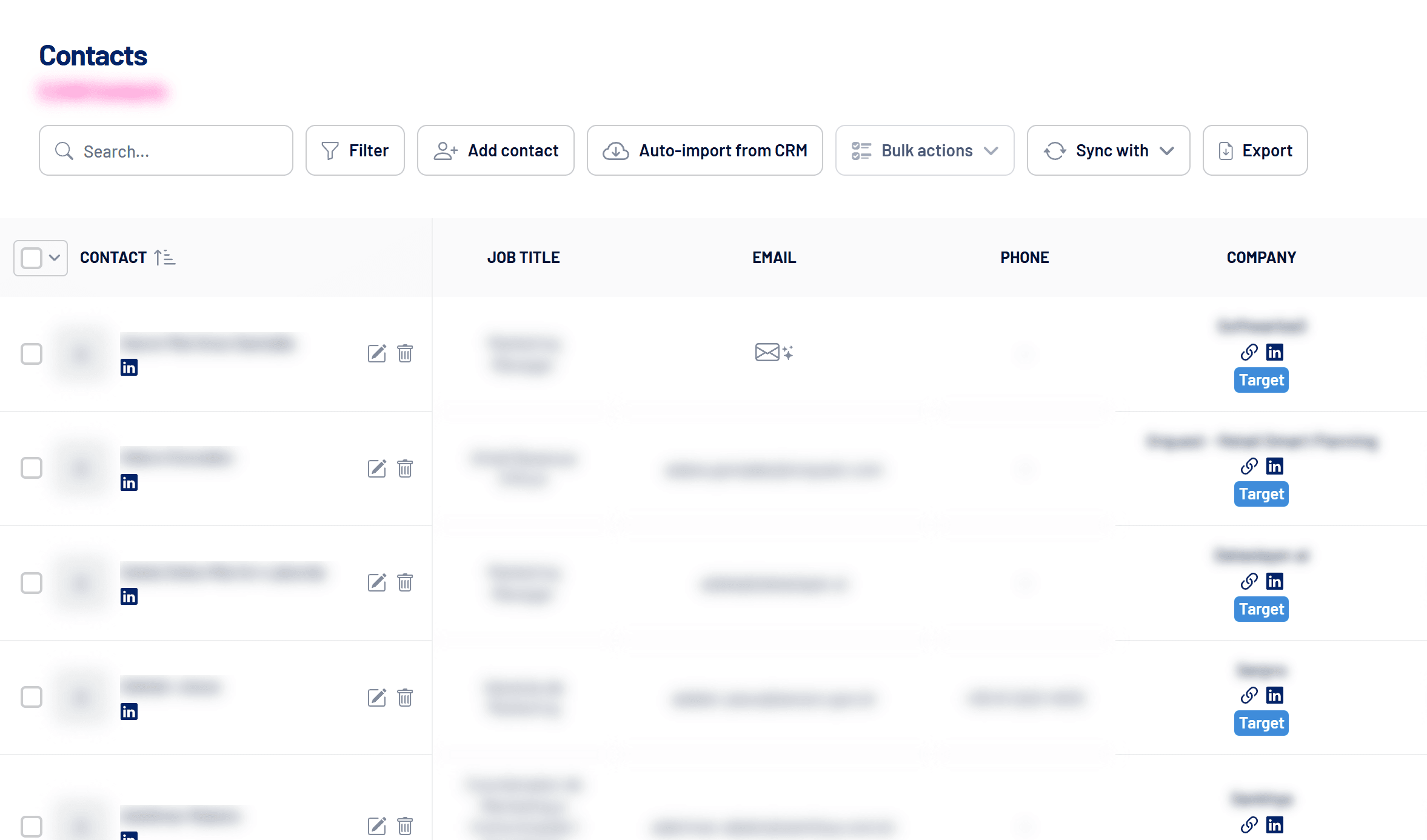
How to add contacts
- Add contact: fill in name, title, email, phone, LinkedIn and company manually.
- Import contacts: upload a spreadsheet with up to 10,000 rows. See How to import contacts from a spreadsheet.
- Find contacts: in Target Accounts, the add icon in the Contacts column searches for people at the company in a connected enrichment provider.
- Auto-import from CRM: brings every contact at the companies with deals in your CRM and keeps them up to date. See How to import contacts from your CRM automatically.
Email enrichment
With an enrichment provider connected in Settings > Integrations (Apollo, Snov.io or Data Stone), LinkedScope finds and validates contacts’ emails.
The wand icon in the Email column marks a contact that can still be enriched. Each email gets a status:
| Status | Meaning |
|---|---|
| Verified | Confirmed with high confidence. |
| Valid | Deliverable according to technical checks. |
| Catch-all | The domain accepts any address, so there’s more risk of error. |
| Invalid | Undeliverable or nonexistent. |
| Unknown | Couldn’t be confirmed. |
Contacts and Target Accounts lists
Contacts at companies in Target Accounts inherit the company’s list.
When you sync, each Target Accounts list becomes a contact audience, and every contact also goes into the global All audience. Contacts without a list only go into the global audience.
With a CRM connected, the sync also keeps three deal-status audiences: Negócios Abertos, Negócios Ganhos and Negócios Perdidos (open, won and lost deals; the names are created in Portuguese).
They hold the contacts whose company has a deal in that status, including contacts added by hand. This applies to LinkedIn, Google and Meta and doesn’t depend on the automatic CRM import.
See How to sync contacts as audiences on LinkedIn, Google and Meta.
CRM data and tags
- CRM link: contacts imported from the connected CRM show the View contact in CRM icon next to LinkedIn, which opens the record directly in HubSpot, Salesforce, Pipedrive, RD Station CRM or Clientify.
- CRM Stage filter: filter by No stage, Won deal, Lost deal or the stages of each pipeline. The filter uses the deals of the company associated with the contact; contacts whose company has no deal fall under No stage.
- Target and Exclusion tags: shown below the company when it is in Target Accounts or on the Exclusion list.
Sync, act in bulk and export
- Sync with: sends contacts as audiences to LinkedIn, Google and Meta. See How to sync contacts as audiences on LinkedIn, Google and Meta.
- Bulk actions: enrich emails, apply tags or send to outreach (WaLead.ai, Snov.io, Apollo or a webhook). See How to send leads, engagers and contacts to outreach tools.
- Export: downloads the contacts as CSV.
Frequently asked questions
Is email required?
No. But for Google and Meta audiences a contact needs a valid email or phone.
Can removing a contact be undone?
No. Removal is permanent.
Do contacts go into audiences automatically?
Yes, if automatic Contacts sync is on. See How to sync audiences automatically (Target Accounts, Exclusion and Contacts).