
In the Subscription tab you follow your plan, status and next charge, open invoices, change plans and cancel. Here is how each change is billed.
- Where: Settings > Subscription
- Who can change it: Owner and Admin
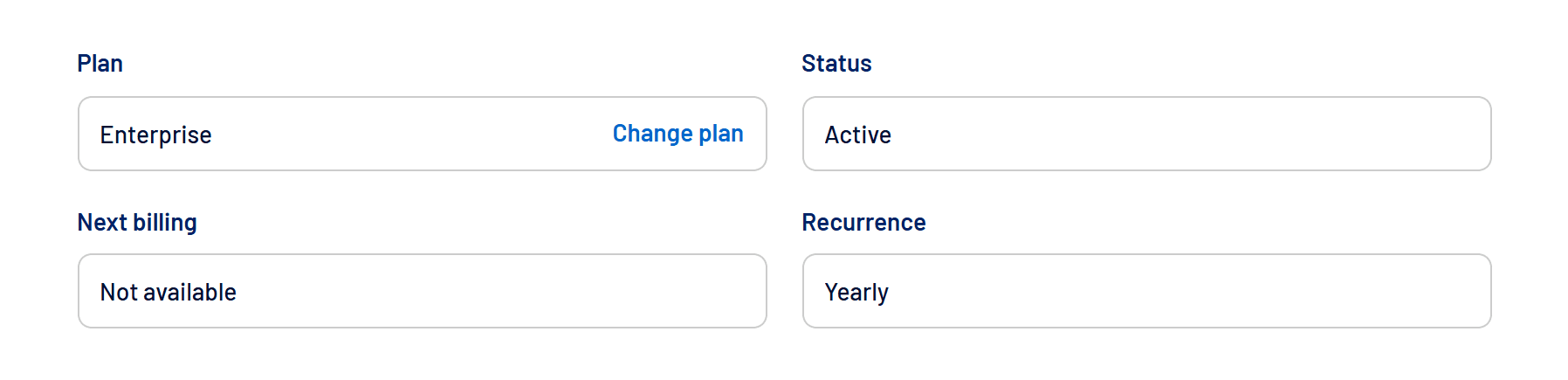
What the tab shows
| Field | Meaning |
|---|---|
| Plan | The current plan, with the Change plan shortcut. |
| Status | Active, Past due or Canceled. |
| Next billing | The next invoice date, with the View invoice link when there is one. |
| Recurrence | Monthly or Annual. |
How to change plans or update the Engagers add-on
- Open Settings > Subscription
Check your current plan, billing cycle and next charge. Owners and Admins can change the subscription. - Click Change plan
This opens the available plans. - Check your billing region and cycle
To add or remove only Engagers, keep the same plan and billing cycle. - Choose your plan and check the Add Engagers box
Select it to purchase the add-on or keep it in your new configuration. Clear it to remove the add-on. This selection is part of the subscription you are choosing. - Click Change to this plan
Use this button to confirm the add-on change even if you are keeping Professional or Enterprise. Selecting or clearing the box alone does not change your subscription. - Complete the next step
If payment is required, complete it. If a downgrade confirmation appears, check the date and click Confirm change. - Check the result under Subscription
Verify whether the change is complete or scheduled. If a payment is pending, use Awaiting payment to finish the process.
I already have Enterprise. How do I add only Engagers?
Go to Settings > Subscription > Change plan, keep Enterprise and your current billing cycle, select Add Engagers on that plan’s card and click Change to this plan.
You stay on Enterprise with the separately purchased add-on. The same process applies to Professional.
Access to Engagers is enabled automatically when the change takes effect. You do not need to ask support for manual activation.
For Brazilian billing, if a prorated difference is due, access is enabled after payment confirmation. Generating a payment request or leaving it pending does not complete the change.
Enabling the module does not configure collection for you. Open Engagers, connect your LinkedIn account if needed and configure the sources to monitor.
Then wait for an update or use Update. See how to get started with Engagers and how to manage sources.
How to remove Engagers or downgrade
To remove only the add-on, return to the plans screen, keep your plan and billing cycle, clear Add Engagers and click Change to this plan.
To move to a lower plan, choose the new option and check whether you want to keep Engagers.
The reduction is scheduled for the end of the period already paid for. Until the date shown, you keep your current features, including Engagers if already purchased.
When the change takes effect, access and billing automatically follow your selected configuration. Requesting add-on removal does not immediately block the module.
Check the date under Settings > Subscription. If you change your mind before it takes effect, use Cancel change.
Downgrading and canceling the subscription are different actions: to stop renewal of the entire plan, follow this article’s cancellation section.
Moving to a higher plan
In Brazil, you only pay the prorated difference for the time left in the current cycle, and the new plan is activated as soon as that payment is confirmed.
The renewal date stays the same, and the following invoices use the new price.
Moving to a lower plan
Your current plan stays in effect, with all its terms, until the end of the cycle you already paid for. The new price and billing cycle apply from then on, with no immediate charge.
Until then, the tab shows the scheduled change, with a Cancel change option.
Payment methods
- Brazil: credit card, boleto or Pix.
- International: credit card.
- If you pay an invoice by card, the card is saved and future invoices are charged to it automatically.
How to cancel
- Click Cancel subscription
In the Subscription tab. - Confirm you still want to cancel
Before that, you can talk to the team to fix whatever isn’t working. - Confirm the cancellation
Automatic renewal stops right away and no new charges are made. Access stays complete until the end of the period already paid, and the Subscription tab highlights the end date.
Changed your mind?
Until the end date, click Undo cancellation and then Confirm reactivation.
The subscription renews again on the original date, using your current card when available; if the card needs to be confirmed, you are taken to checkout.
Changing plans during this period also turns renewal back on.
Frequently asked questions
Is my data deleted when I cancel?
Not right away. Access ends at the end of the period, and you can come back by choosing a new plan.
The invoice is pending. How do I pay it?
Use the Awaiting payment button. See Account with a pending payment: what happens and how to fix it.